

 Home
HomeWhat debug mode changes
When a deployment runs in debug mode:- No remote attestation. The enclave boots in AWS Nitro debug mode, which produces attestation documents whose PCR values are all zeros. The enclave cannot prove what code it is running, so it is not verifiable, and the core property of a TEE is effectively disabled. See Proofs and Verification.
- The Quorum Key is exposed. Because the enclave is inspectable, any secret inside it, including the app’s Quorum Key, must be considered viewable. This is why the Quorum Key is permanently compromised once debug mode is enabled on an app.
- Logs are readable. Your application’s
stdoutandstderrfrom inside the enclave are captured so you can view them (this is the point of debug mode). Anything your app logs is visible to you, and while debugging it is not protected by the enclave, so avoid logging secrets. - One replica. Debug deployments run a single replica instead of three.
Recommended flow: a dev app and a production app
Keep two separate apps that run the same image:- A dev app with debug mode enabled. Deploy your image here, read the logs, and iterate until it works.
- A production app with debug mode disabled and its own Quorum Key. Once your image works in the dev app, deploy the same image to your production app as a secure, verifiable deployment.
Enabling debug mode
Debug mode is controlled by two opt-in flags, both prefixeddangerous to signal that they weaken security.
1
Allow debug deployments on the app
Set this in your app config (
app.json from tvc app init), or pass --dangerous-enable-debug-mode-deployments when creating the app:This flag can only be set when the app is created and cannot be changed later. It defaults to
false. Setting it to true is what permanently marks the app’s Quorum Key as insecure, which is why this belongs on a dedicated dev app, never your production app.2
Deploy in debug mode
For deployments in the app you’ve just created, set this in your deploy config (The app flag only permits debug deployments; this flag actually runs the deployment in debug mode so its logs are captured.
deploy.json), or pass --dangerous-deploy-debug-mode when creating the deployment:3
View the logs
You can view your application’s enclave logs from the CLI or on the deployment’s page in the dashboard.Fetch the logs from the CLI:Run Or view them on this deployment’s page in the TVC dashboard. Just select your app from the app page and then select the live deployment from the following deployments page. Now you will be on the live deployment’s page where you will find the Debug Logs table near the top: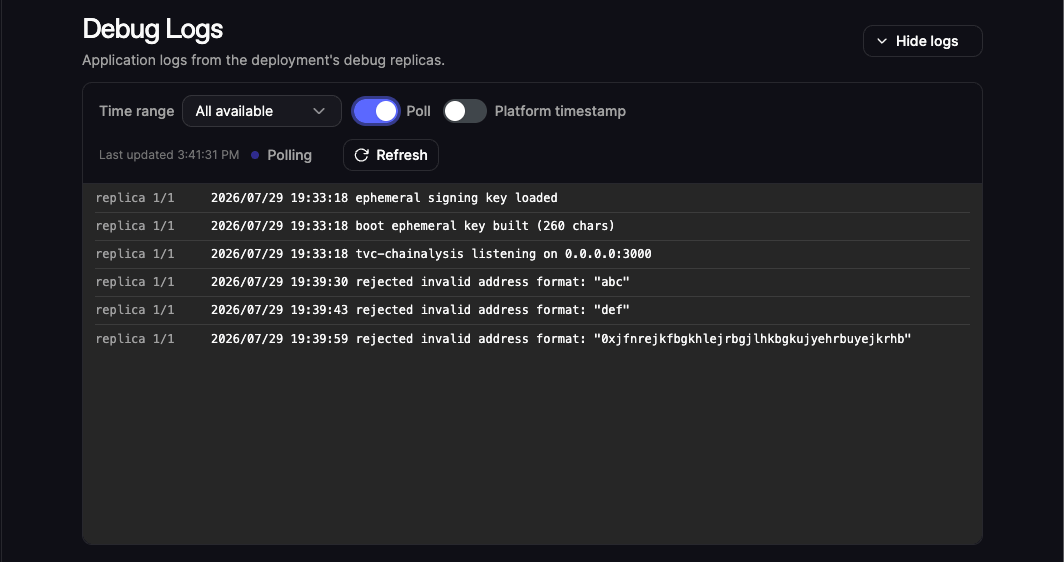
tvc deploy debug-logs --help to see the other available options.