Documentation Index
Fetch the complete documentation index at: https://docs.turnkey.com/llms.txt
Use this file to discover all available pages before exploring further.
Turnkey organization setup
To start, you must create a Turnkey organization via the Turnkey dashboard. The steps to do so are described in the Account Setup section.
For this setup, we will be using Turnkey’s Auth Proxy to handle authentication. We can enable and configure this through the Turnkey dashboard.
Enable Auth Proxy
Navigate to the Wallet Kit section in the Turnkey Dashboard and enable the
Auth Proxy.
Customize auth methods
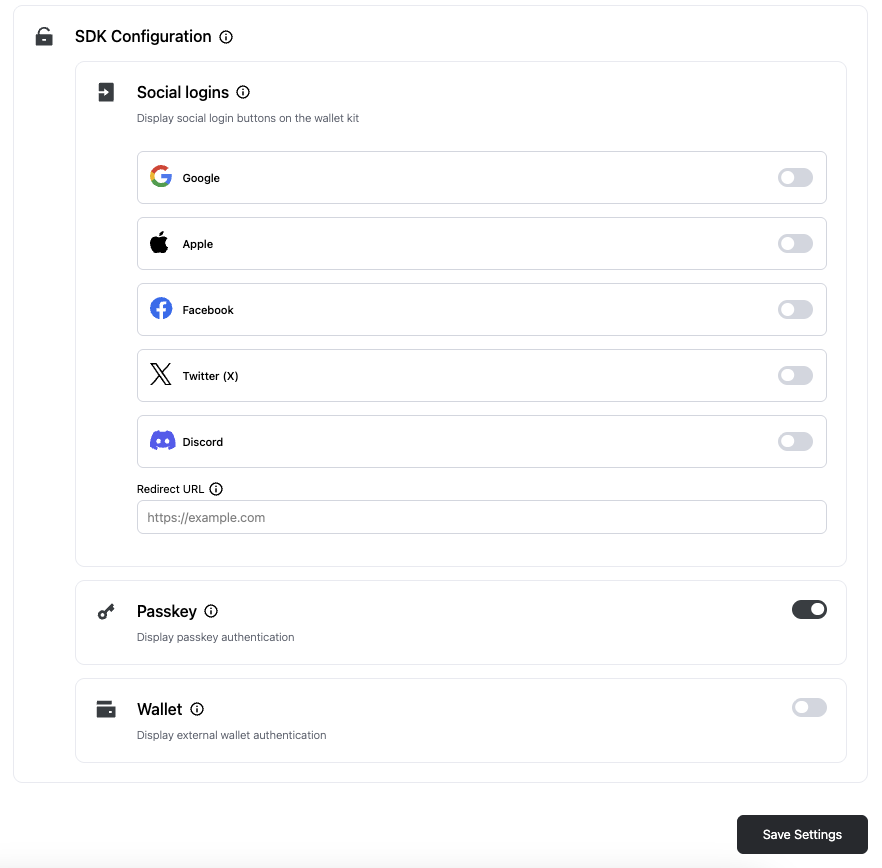
You can choose which auth methods to enable and customize various options from this screen. For this quickstart, let’s enable email OTP and passkeys. When you’re done, click Save.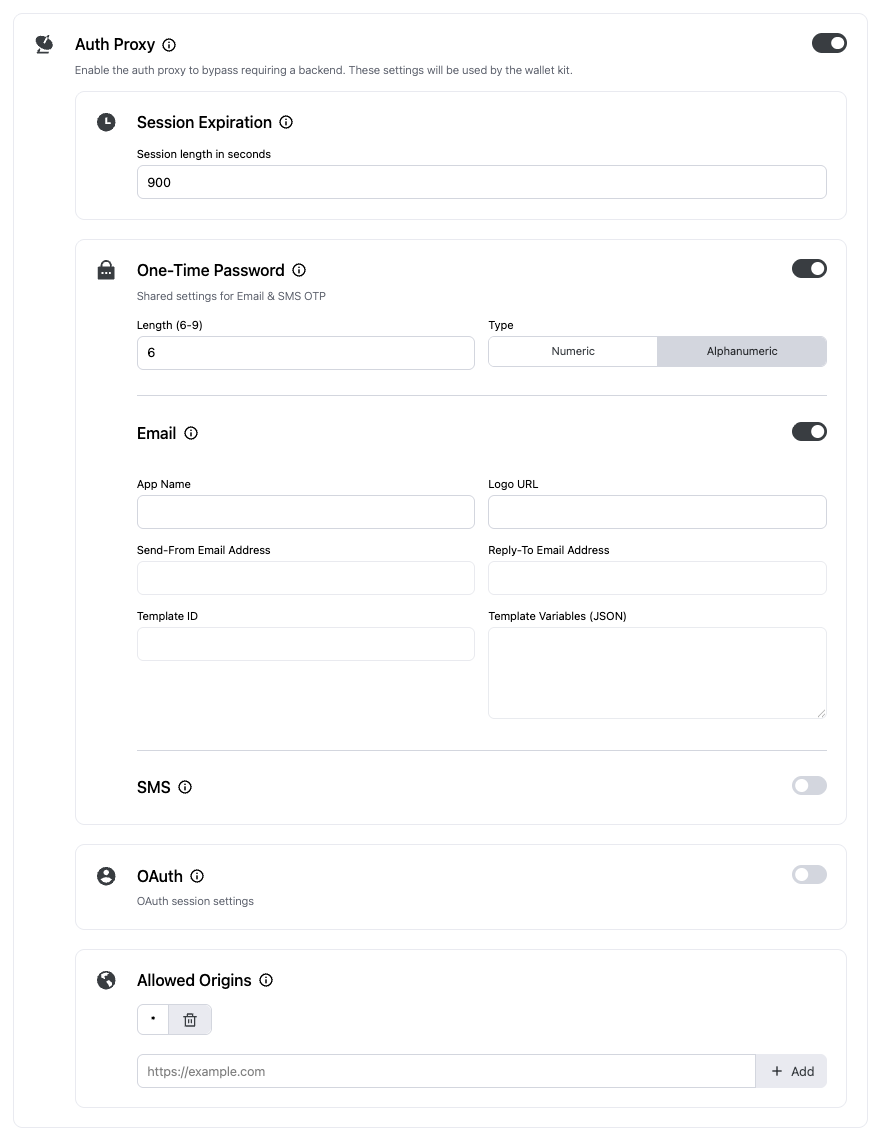
Finish up
Once you’re finished with the auth proxy setup, you can copy the auth proxy config ID and your organization ID from the dashboard.
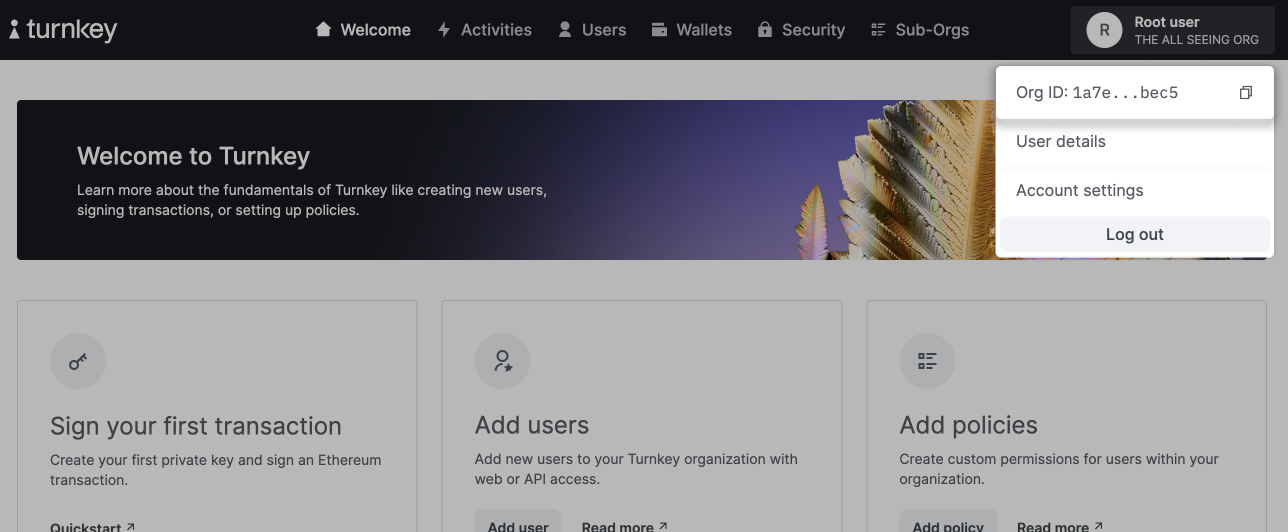 These will be used in the next steps to configure your app.
 Installation
You can use turnkey_sdk_flutter in any Flutter application.
If you’re starting fresh, create a new Flutter app:
flutter create my_turnkey_app
cd my_turnkey_app
flutter pub add turnkey_sdk_flutter provider flutter_inappwebview
Provider
Wrap your app with ChangeNotifierProvider and configure TurnkeyProvider.
import 'package:flutter/material.dart';
import 'package:provider/provider.dart';
import 'package:turnkey_sdk_flutter/turnkey_sdk_flutter.dart';


final GlobalKey<NavigatorState> navigatorKey = GlobalKey<NavigatorState>();

void main() async {
    WidgetsFlutterBinding.ensureInitialized();

    // Optional: define some callbacks
    void onSessionSelected(Session session) {
        // Do something when the user logs in, e.g. navigate to home screen
    }

    void onSessionCleared(Session session) {
        // Do something when the user logs out, e.g. navigate to login screen
    }

    void onInitialized(Object? error) {
        // Do something when the SDK is initialized
    }

    final turnkeyProvider = TurnkeyProvider(
        config: TurnkeyConfig(
            authProxyConfigId: "<YOUR_AUTH_PROXY_CONFIG_ID>",
            organizationId: "<YOUR_ORGANIZATION_ID>",

            // Optional: attach some callbacks
            onSessionSelected: onSessionSelected,
            onSessionCleared: onSessionCleared,
            onInitialized: onInitialized,
        ),
    );

    runApp(
        ChangeNotifierProvider(
            create: (_) => turnkeyProvider,
            child: const MyApp(),
        ),
    );
}

class MyApp extends StatelessWidget {
    const MyApp({super.key});

    @override
    Widget build(BuildContext context) {
        return MaterialApp(
            navigatorKey: navigatorKey,
            title: 'My Turnkey App',
            theme: ThemeData(useMaterial3: true),
            home: const MyApp(), // Replace with your app's screen
        );
    }
}
Optional: ready state & error surfacing
You can await turnkeyProvider.ready during startup to surface initialization errors to the user:
turnkeyProvider.ready.then((_) {
  debugPrint('Turnkey is ready');
}).catchError((error) {
  debugPrint('Error during Turnkey initialization: $error');
  // Show a snackbar/toast after the current frame
});
Demo app
You can check out a complete demo app that uses Turnkey’s Flutter SDK on GitHub. Feel free to clone and modify it to get started quickly!

Next steps
Ready to start building your app? Check out the Authentication guide to learn how to set up login/signup in your Flutter application.
