Home
Home- You see the error
The email is already associated with an existing organization userand want to free up that address for another user. - You are moving to a new work email, for example after a company rename or domain change.
- You want notifications and email authentication codes delivered to a different inbox.
- The address was entered incorrectly when the user was created.
- You want to switch from a personal address to a shared or role-based one, such as
ops@orsecurity@.
1
Open your account menu
Select your name in the top right corner of the dashboard, then choose My Profile.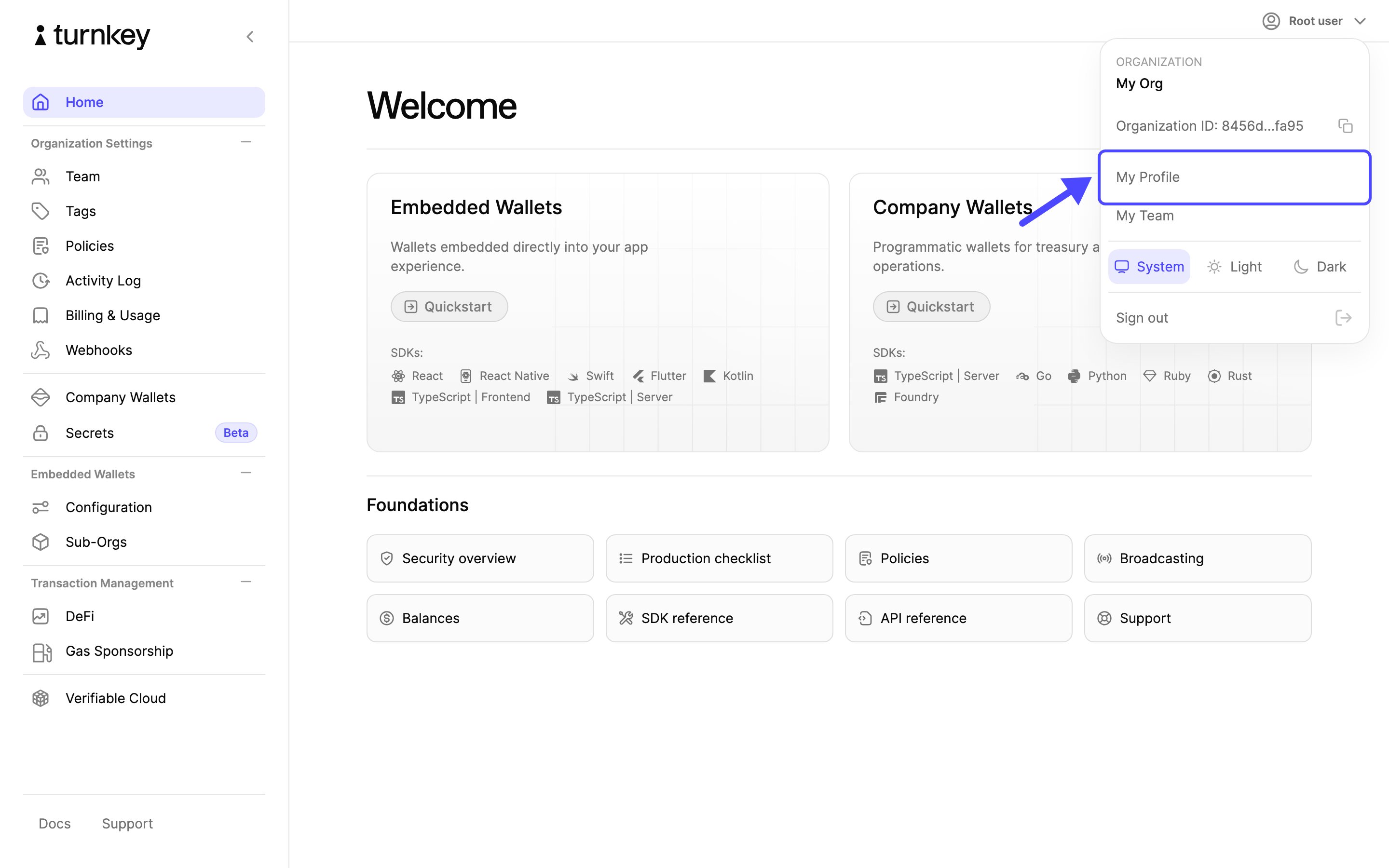
2
Open the editor
On your profile, select the Edit user button.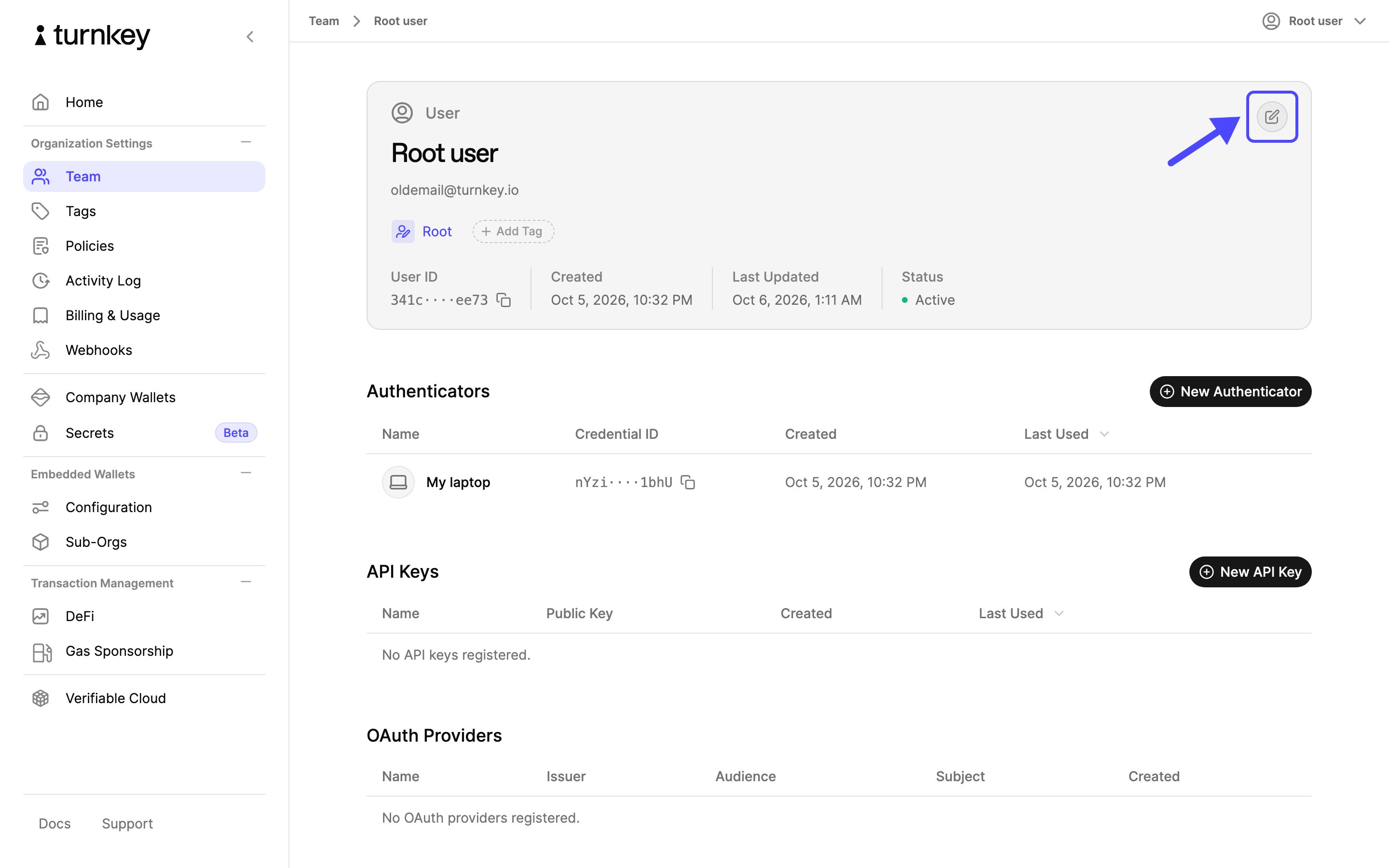
3
Change the email address
Replace the email address with the new one and select Continue.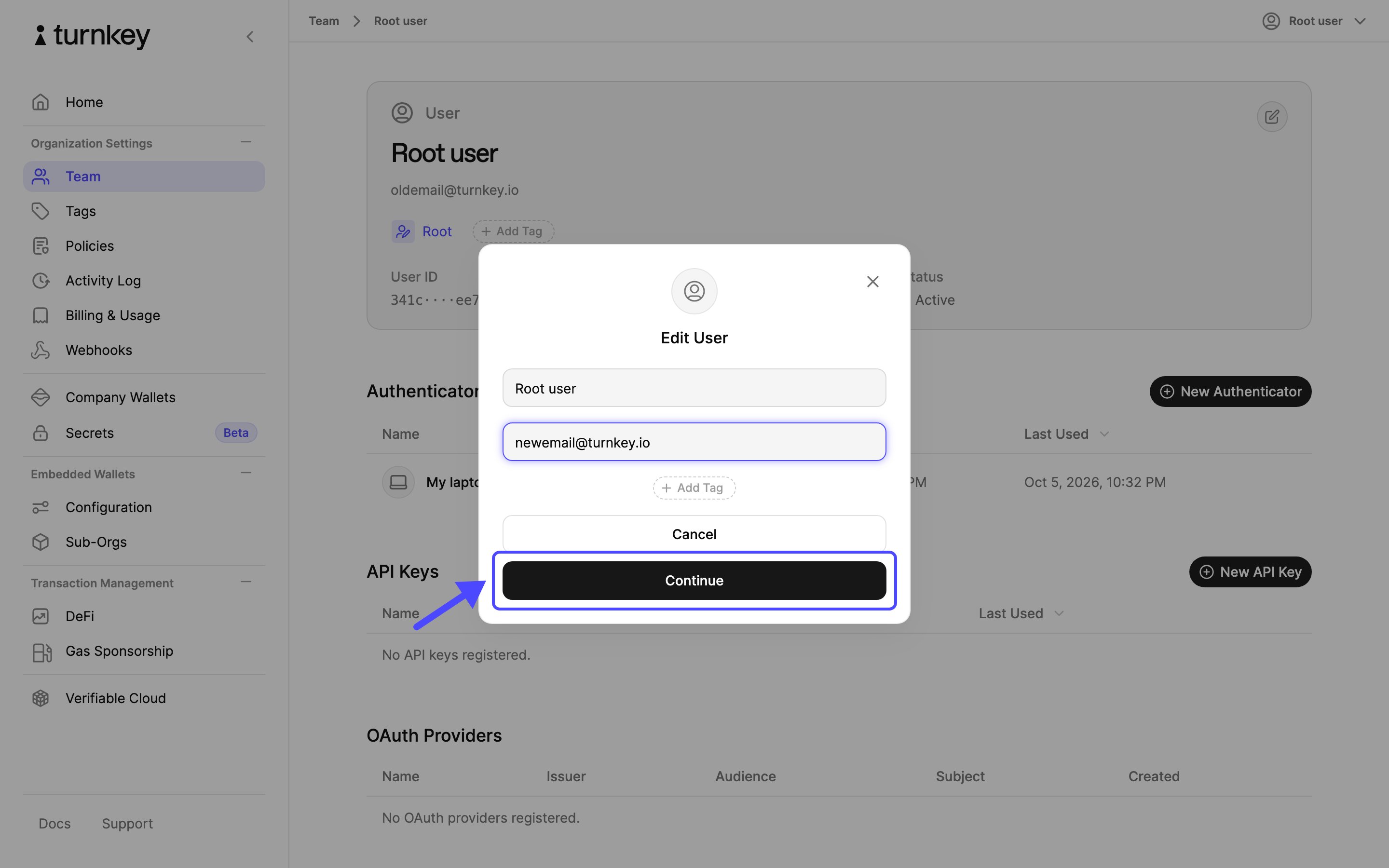
4
Approve the change
Confirm the update with your authenticator. Choose This Device for a passkey or Security Key for a hardware key.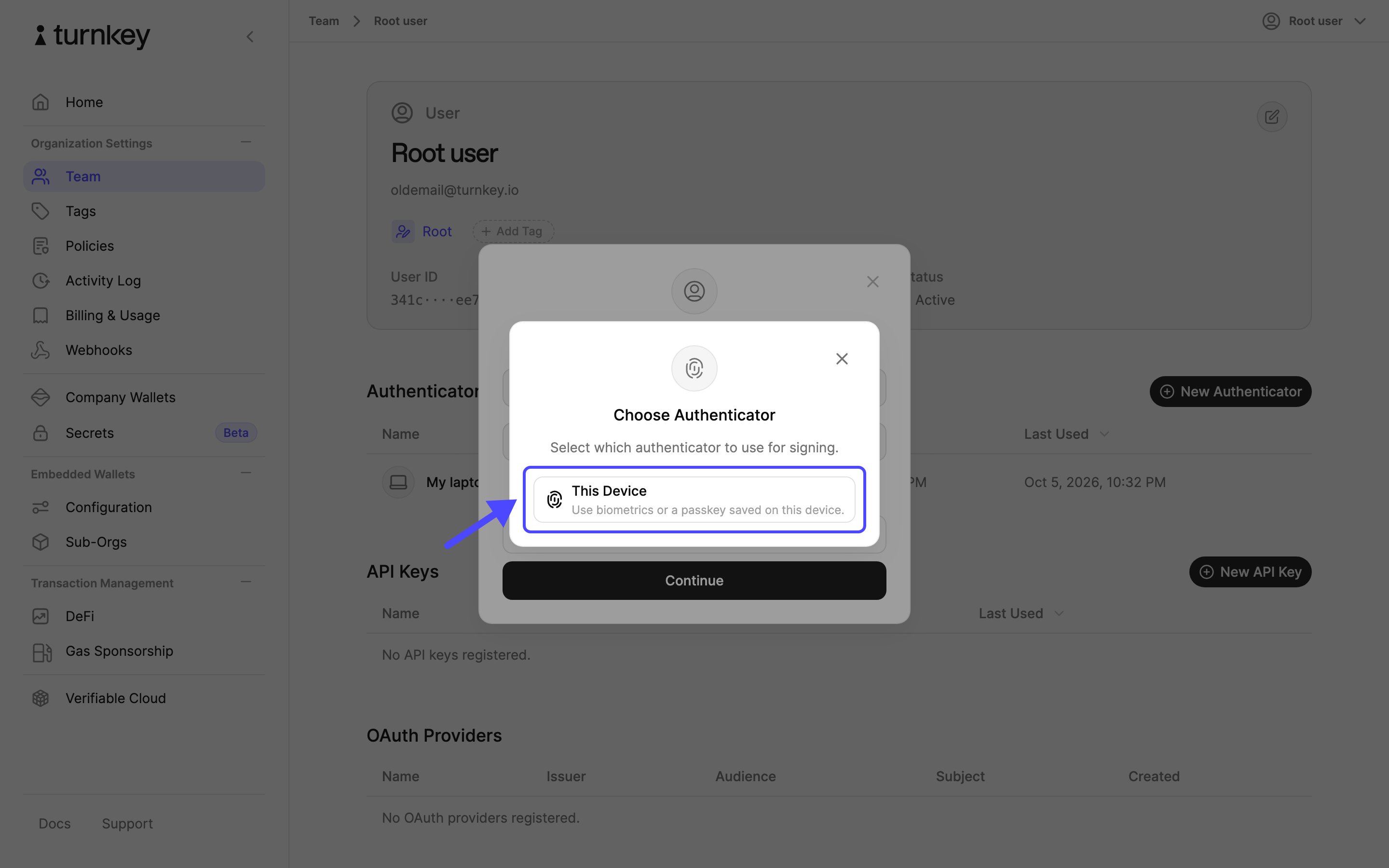
5
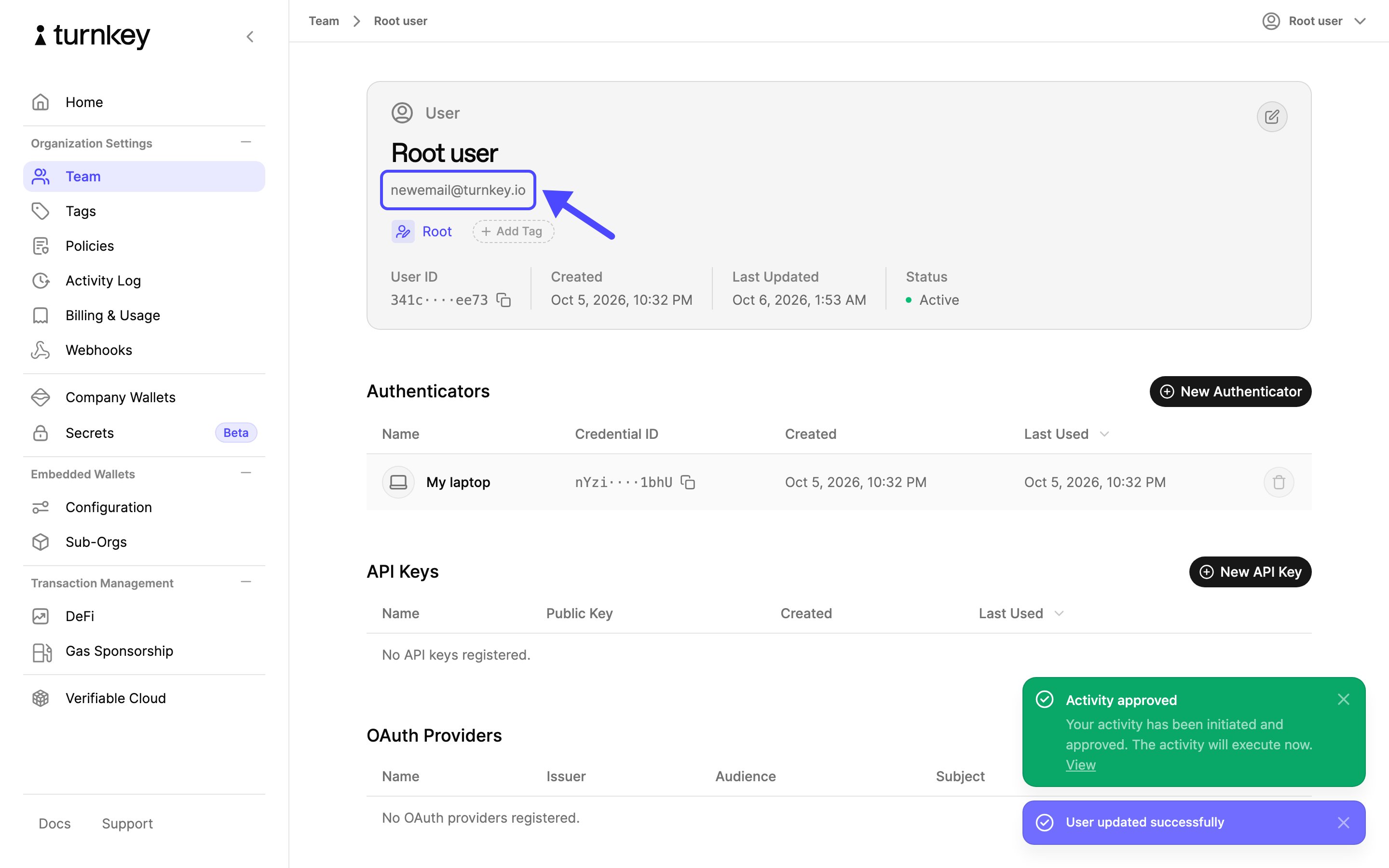
Email updated
Your profile now shows the new email address.