

 Home
- You want an offline backup of the wallet’s key material that does not depend on Turnkey.
- You are moving funds or operations to another wallet provider.
- You are decommissioning the wallet and want to keep access to any funds that arrive later.
- Turnkey never sees the seed phrase. A Turnkey enclave encrypts it to a key that exists only in your browser, and your browser decrypts and displays it. See how export works for the details.
- The wallet stays in Turnkey after the export and keeps signing as before. Its Exported column changes to Yes and stays that way. There is no way to mark a wallet as not exported again, so an export is a permanent record that the seed phrase has left Turnkey.
- Standalone private keys have their own Export button on the Private Keys tab. The steps are the same, and the dialog reveals the private key instead of a seed phrase.
- Exporting a single account’s private key, rather than the whole seed phrase, is only available through the export wallet account activity.
1
Open the Wallets page
In the left navigation, select Company Wallets, then select the wallet you want to export.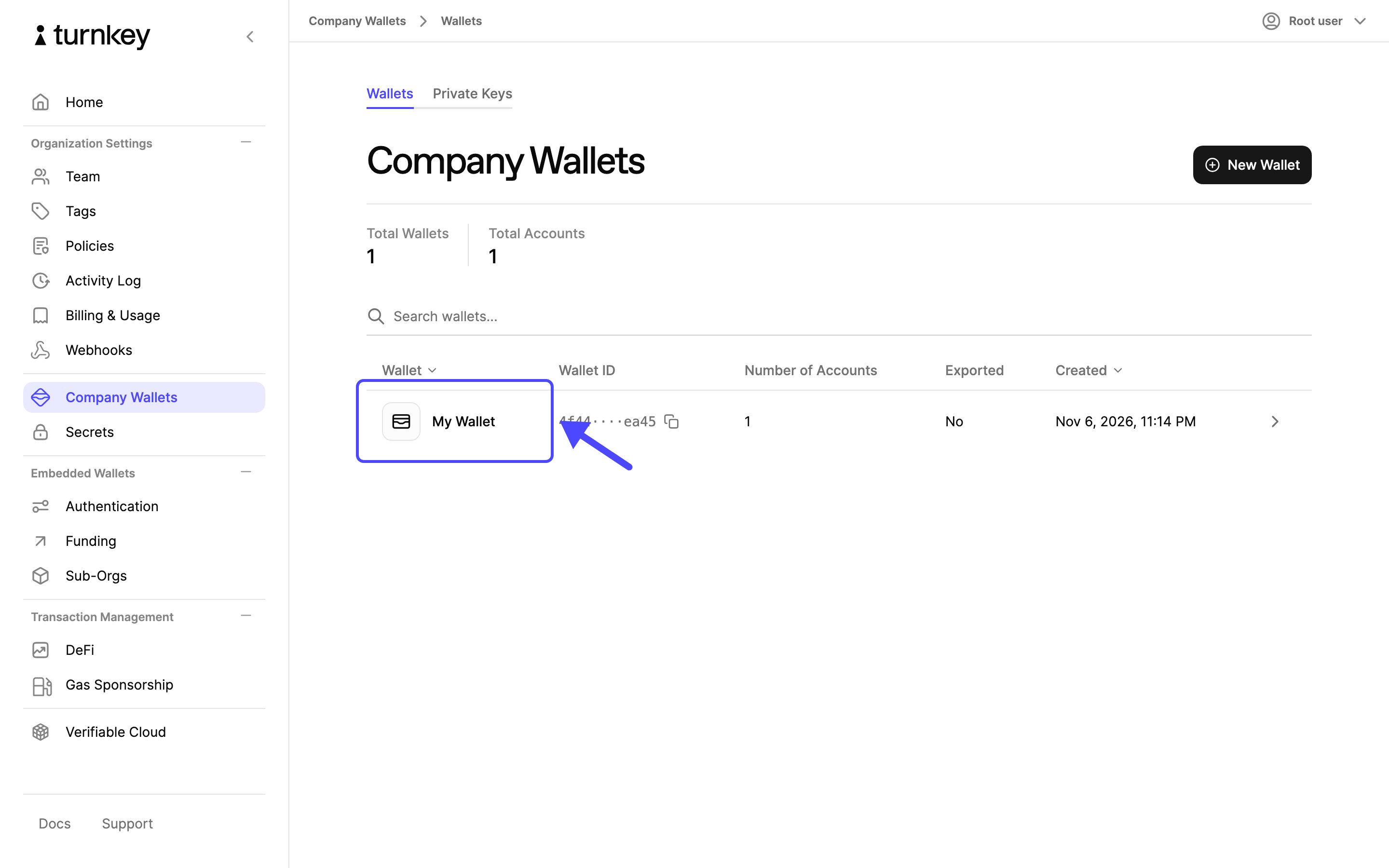
2
Open the export dialog
On the wallet’s page, select Export.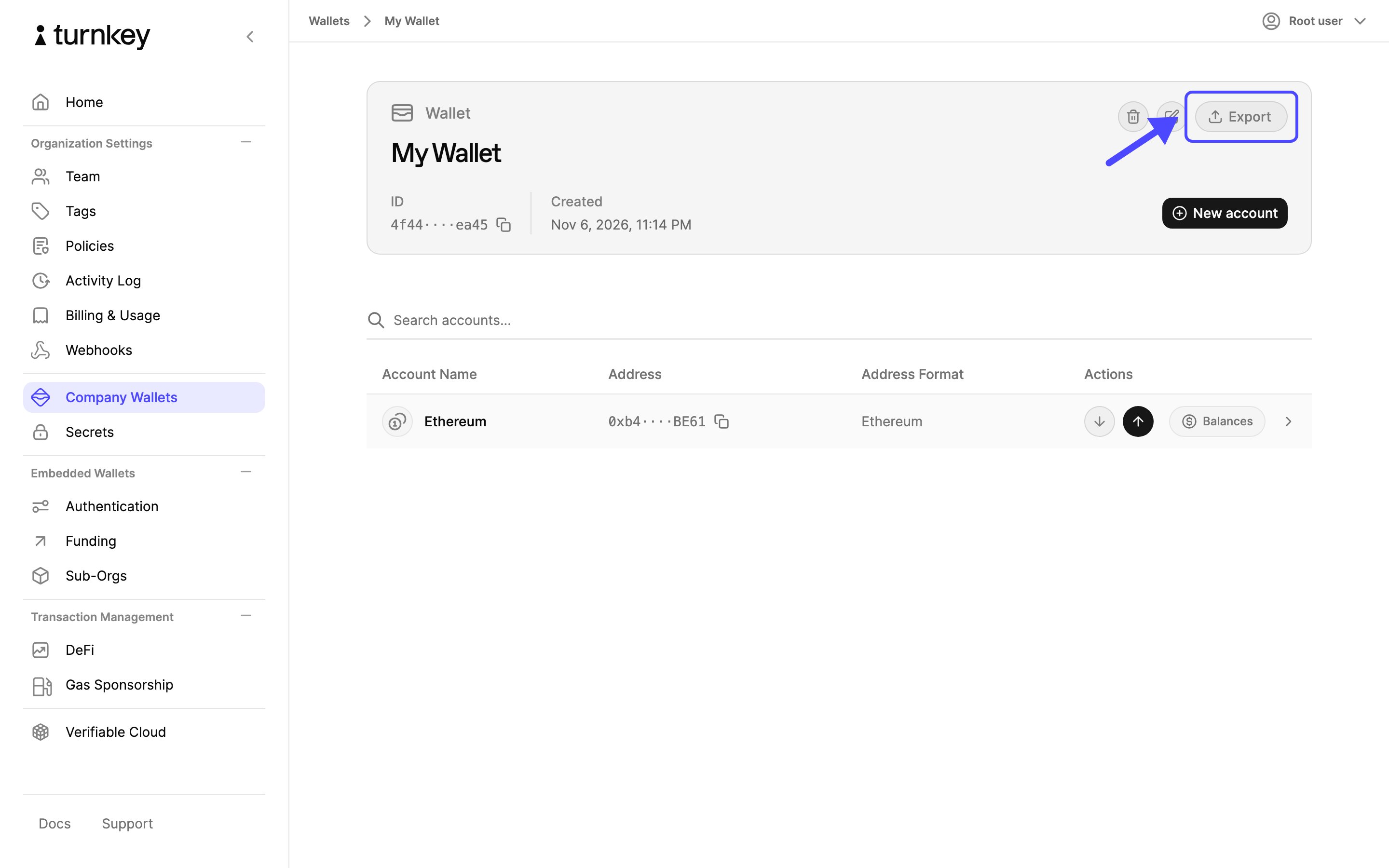
3
Review the warnings
Read the warnings. Make sure nobody can see your screen, and plan to write the seed phrase down rather than copy it. Select Continue.If the dialog is titled Consensus Required for Export instead, your organization’s root
quorum needs more than one approval. Follow
Export when your organization requires consensus
below.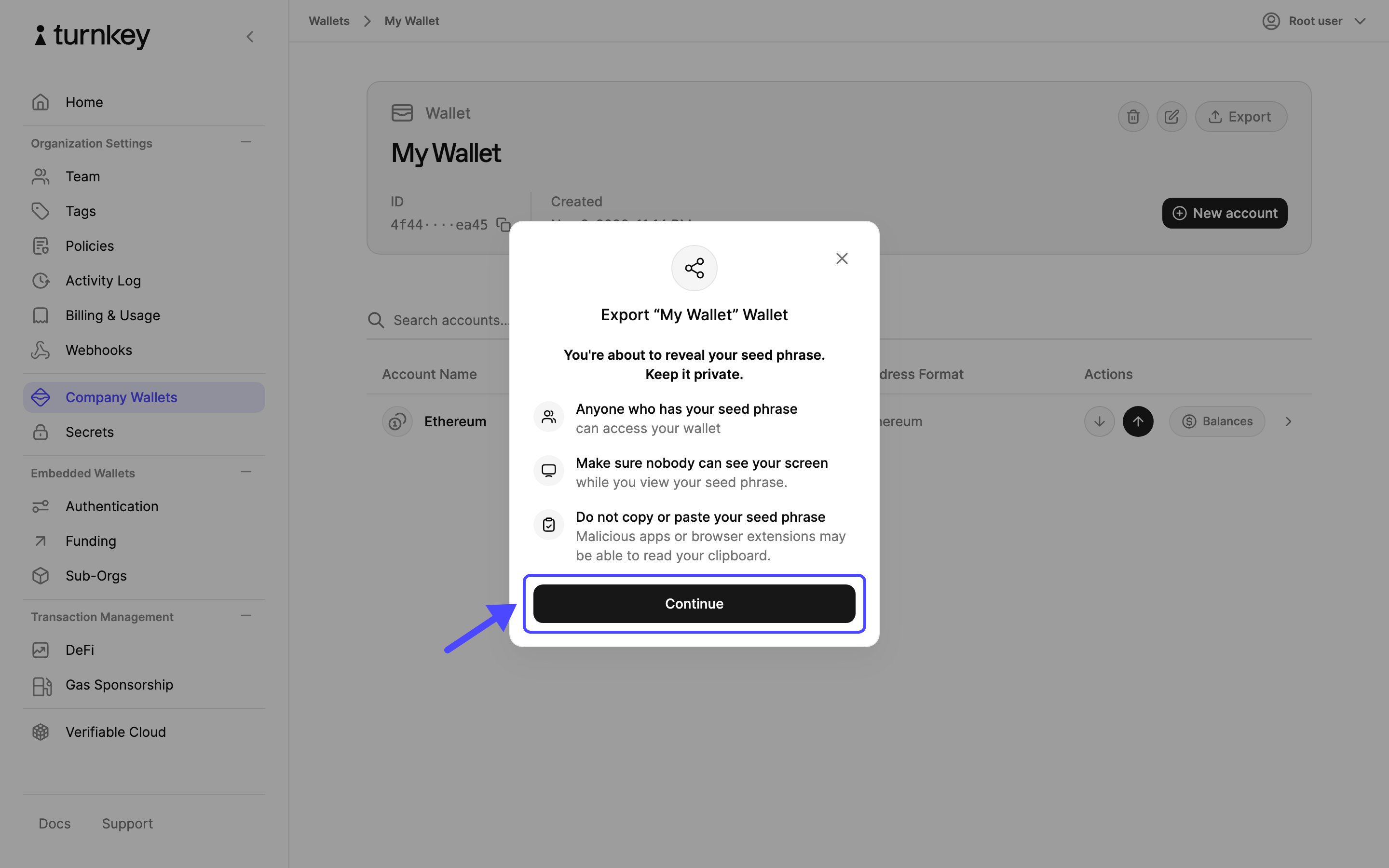
4
Approve the export
Confirm with your authenticator. Choose This Device to use a passkey, as shown in the screenshot,
or another authenticator option from the modal, such as a security key.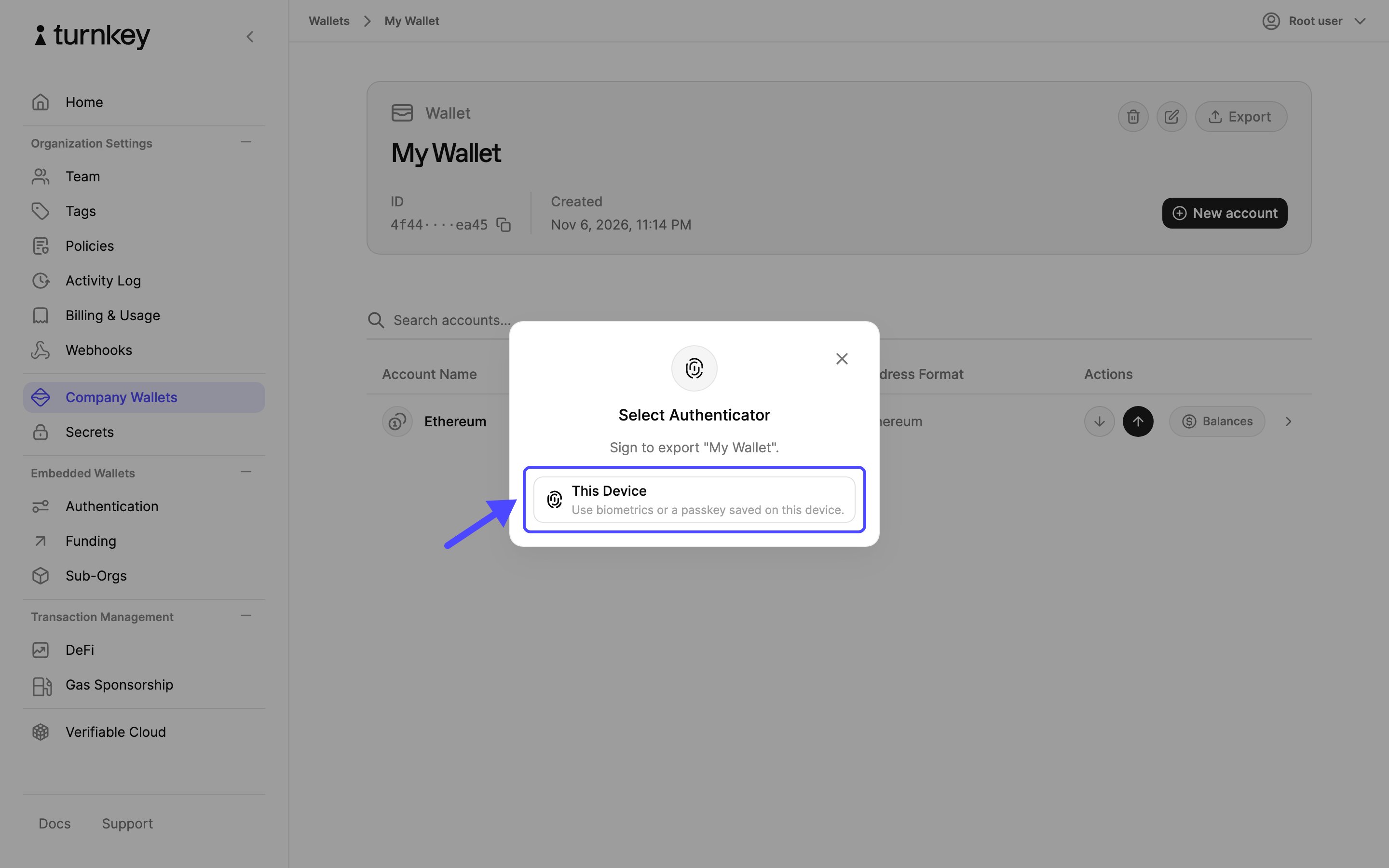
5
Save the seed phrase
The dialog is replaced by a Seed Phrase panel that shows the words in order. Write them
down, check them against the screen, and select Done when you are finished. The seed
phrase is not shown again. If you lose it, run the export again to reveal it.Back on the wallet list, the wallet’s Exported column now reads Yes.
Export when your organization requires consensus
If your root quorum has a threshold above 1, the export cannot finish in the browser the way it does for a single approver. The export activity waits for the other approvals, and the encrypted bundle only exists once they arrive. The dashboard therefore asks you to supply the encryption key up front from Turnkey’s hosted export page, and you bring the bundle back to that same page once the activity completes.1
Copy the embedded key
Open export.turnkey.com in a new tab of the same browser. Under
Export Key Material, copy the value labelled Embedded key. This is the public half of
a key pair that the page generated and stored in this browser’s local storage.Do not paste a public key you generated yourself with a script. The export page can only
reveal the seed phrase if the bundle was encrypted to the key it holds.
2
Paste the embedded key
Back in the dashboard, select Export on the wallet’s page as before. Because your root
quorum needs more than one approval, the dialog is titled Consensus Required for Export
and asks for a public key. Paste the embedded key and select Continue export, then approve
with your authenticator.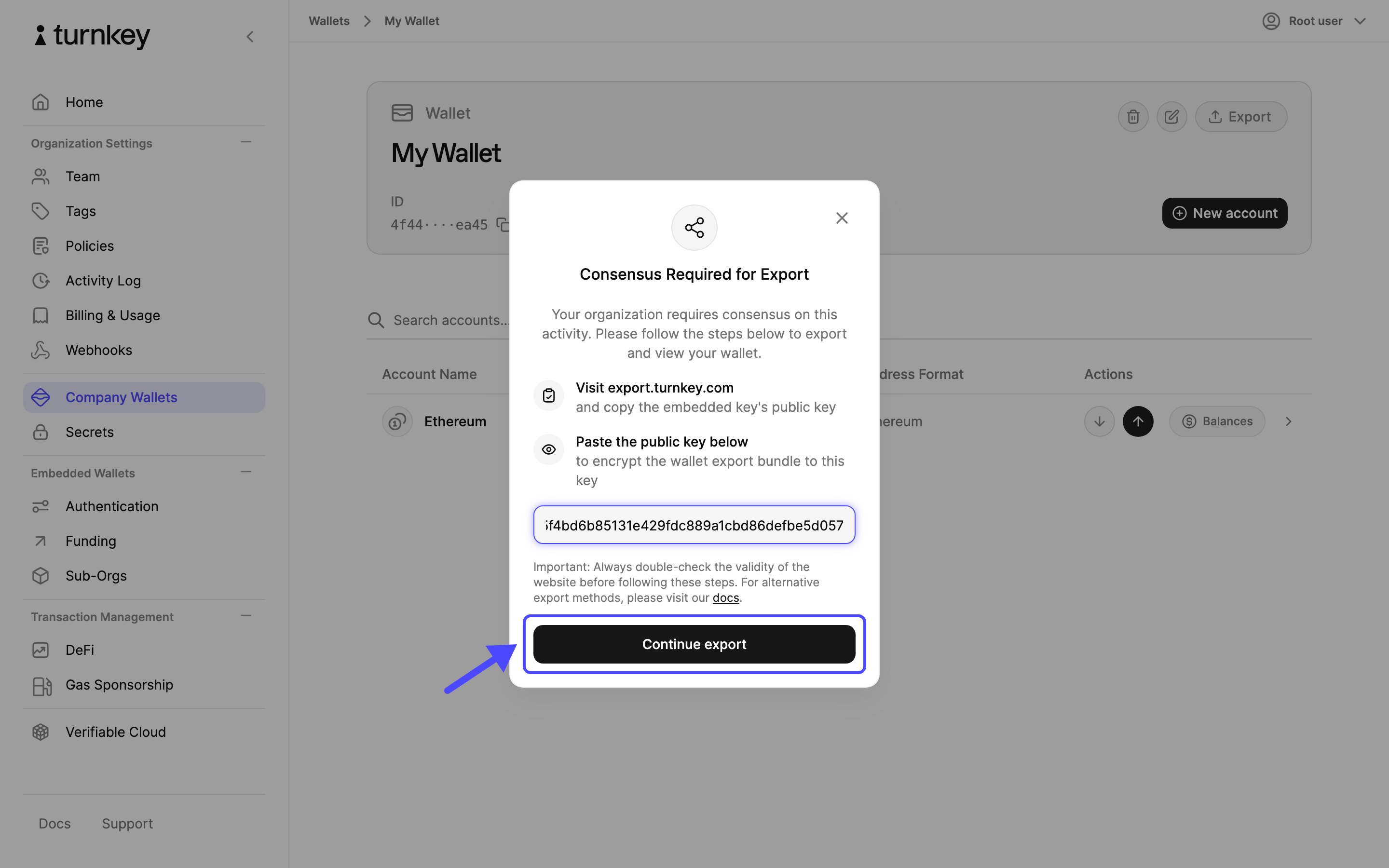
3
Export activity sent
The export is now a pending activity. Nothing is revealed until the other root quorum members
approve it.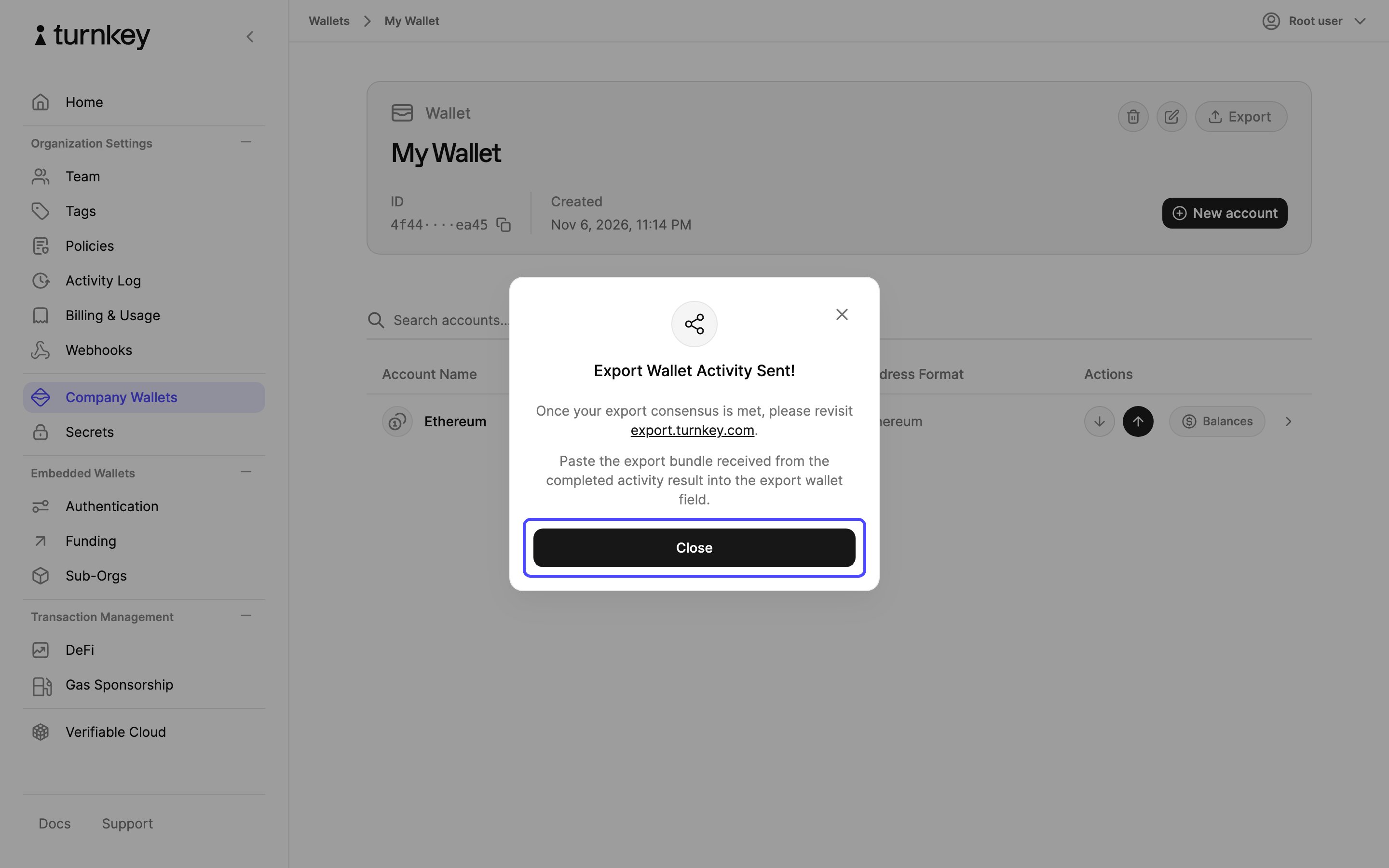
4
Wait for the approvals
In the left navigation, select Activity Log. The export sits on the Pending tab until
enough root quorum members approve it. They approve it from this same tab in their own
dashboard, or with the approve activity
endpoint. Approvals do not depend on the embedded key, so they can come from any browser or
device.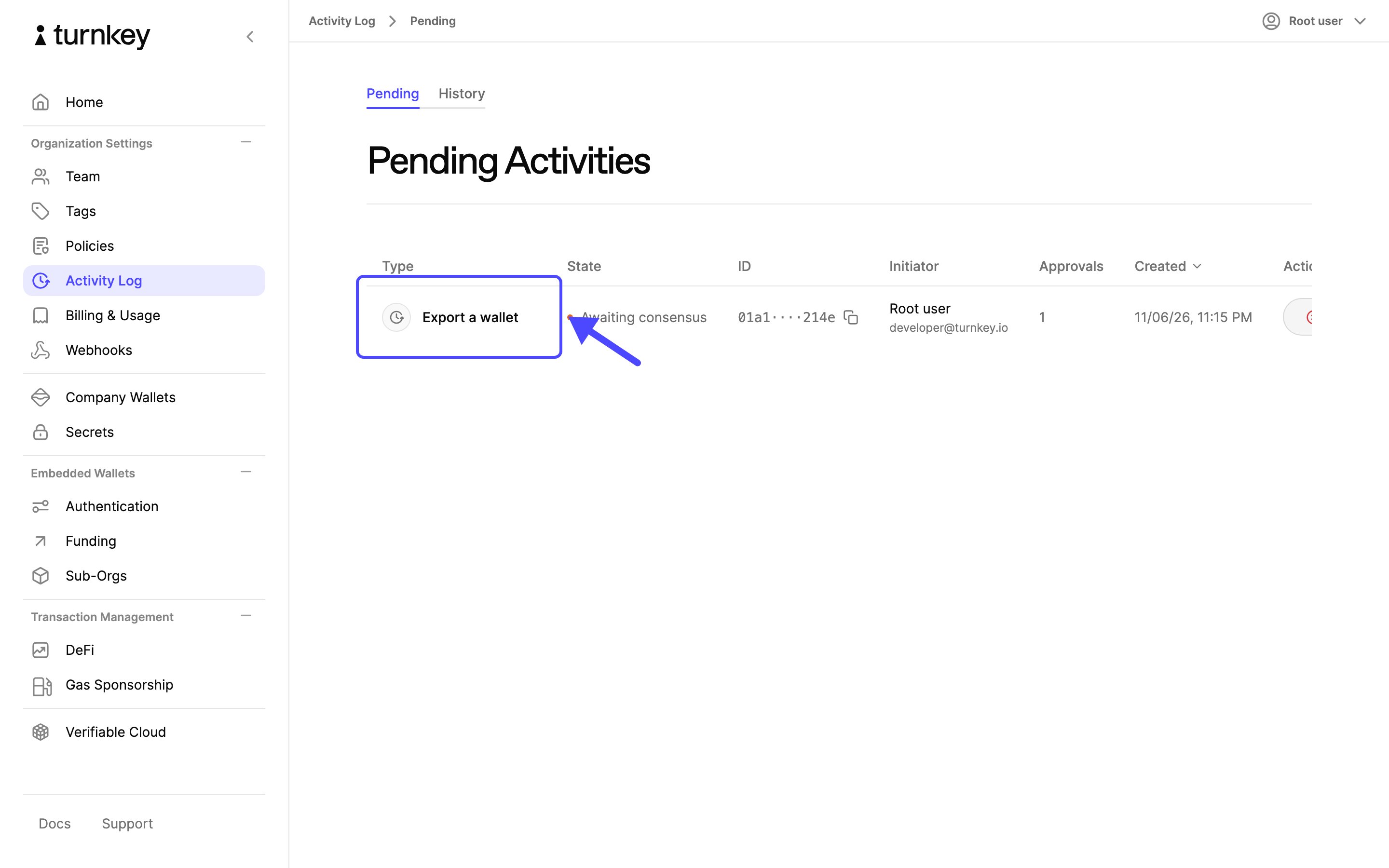
5
Copy the export bundle
Once approved, the activity moves to the History tab. Open it, expand result, then
exportWalletResult, and copy the exportBundle value.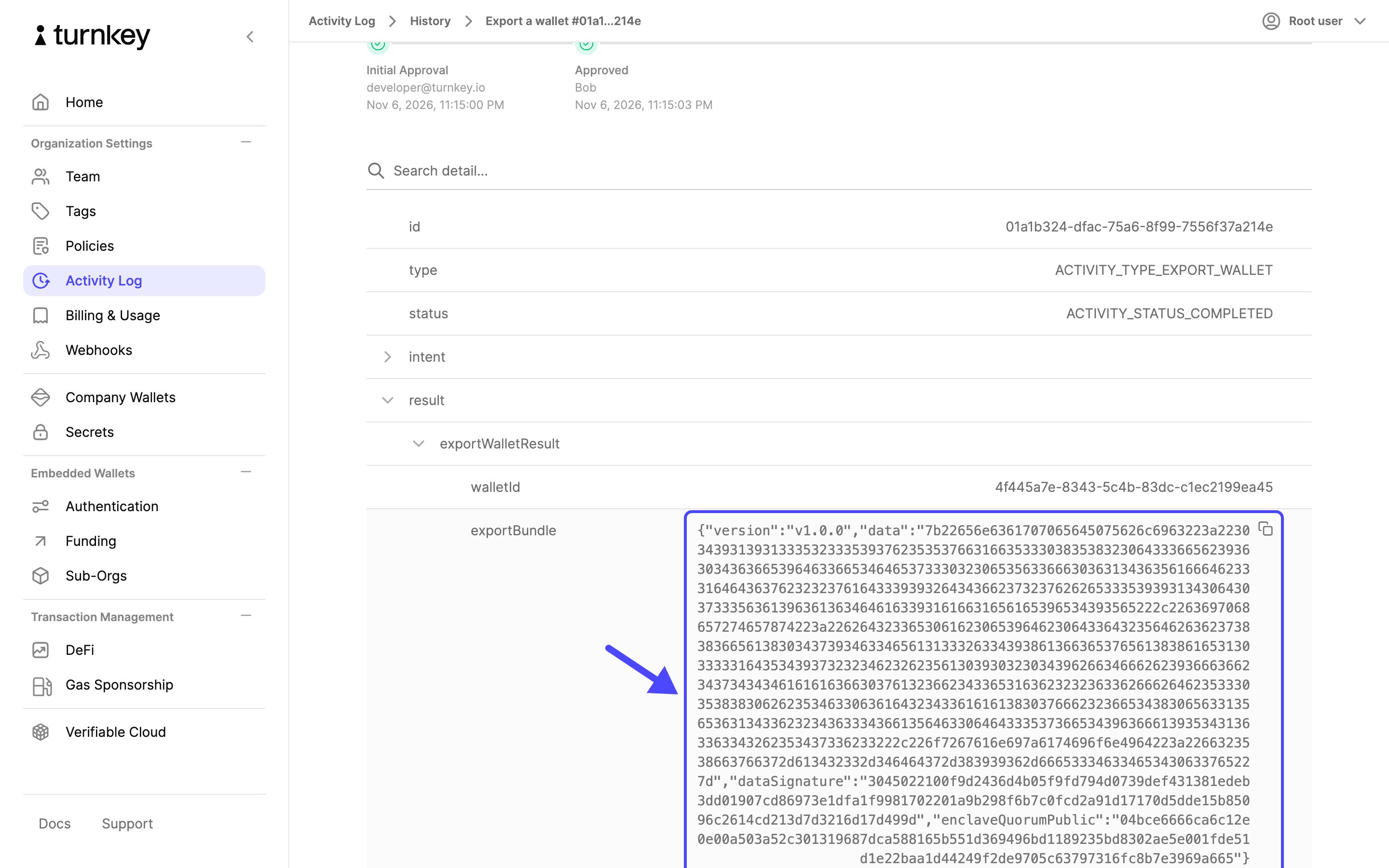
6
Reveal the seed phrase
Return to the export.turnkey.com tab from step 1. Under
Inject Wallet Export Bundle, paste the bundle into Bundle and your organization ID
into Organization Id, then select Inject Bundle. The page decrypts the bundle and
shows the seed phrase.
Restricting who can export
Export is an activity like any other, so policies decide which users can run it. A policy that deniesACTIVITY_TYPE_EXPORT_WALLET and
ACTIVITY_TYPE_EXPORT_PRIVATE_KEY for a user or tag stops those users from exporting; the
dashboard still shows the Export button, but the activity is rejected when they approve it.
Policies do not apply to the root quorum. A root quorum with a threshold of 1 can always export,
and there is no setting that removes this ability from root users. To require a second person
for every export, raise the root quorum threshold above 1. Each export then goes through the
consensus flow above. Keep in mind that the threshold applies to every root action, not only
exports. See root quorum best practices for how to
structure this.
Every export is recorded in the Activity Log and is delivered to your
webhooks, so you can monitor for exports even when you cannot prevent them.