Home
- It needs the root quorum, for example an update to the root quorum itself or any action that no policy allows, and the root quorum threshold is 2 or more.
- A policy allows it only with the approval of additional users, through the policy’s consensus condition.
- You vote on activities that someone else started. Starting an activity already counts as that user’s approval, so you cannot approve your own. The examples below start from an activity that another root user, Alice, submitted and that needs one more approval.
- For an activity that needs the root quorum, only root users can vote. For a policy with consensus, only the users the policy names as approvers can.
- Each vote is valid for 24 hours. After it expires, it no longer counts toward consensus, and you can vote again if the activity is still pending.
- Approving and denying each require approval from one of your authenticators, so keep your passkey or security key handy.
- A service user has no dashboard login. It votes through the API with the approve activity and reject activity endpoints.
1
Find the pending activity
In the left navigation, select Activity Log; the badge next to it counts the activities waiting for your vote. The Pending tab lists every activity that still needs approvals. Each row shows the activity’s type and state, who started it under Initiator, how many approvals it has so far, and when it was created. A row whose state is Action required is waiting for your vote. You cannot approve an activity you started yourself, because starting it already counts as your approval.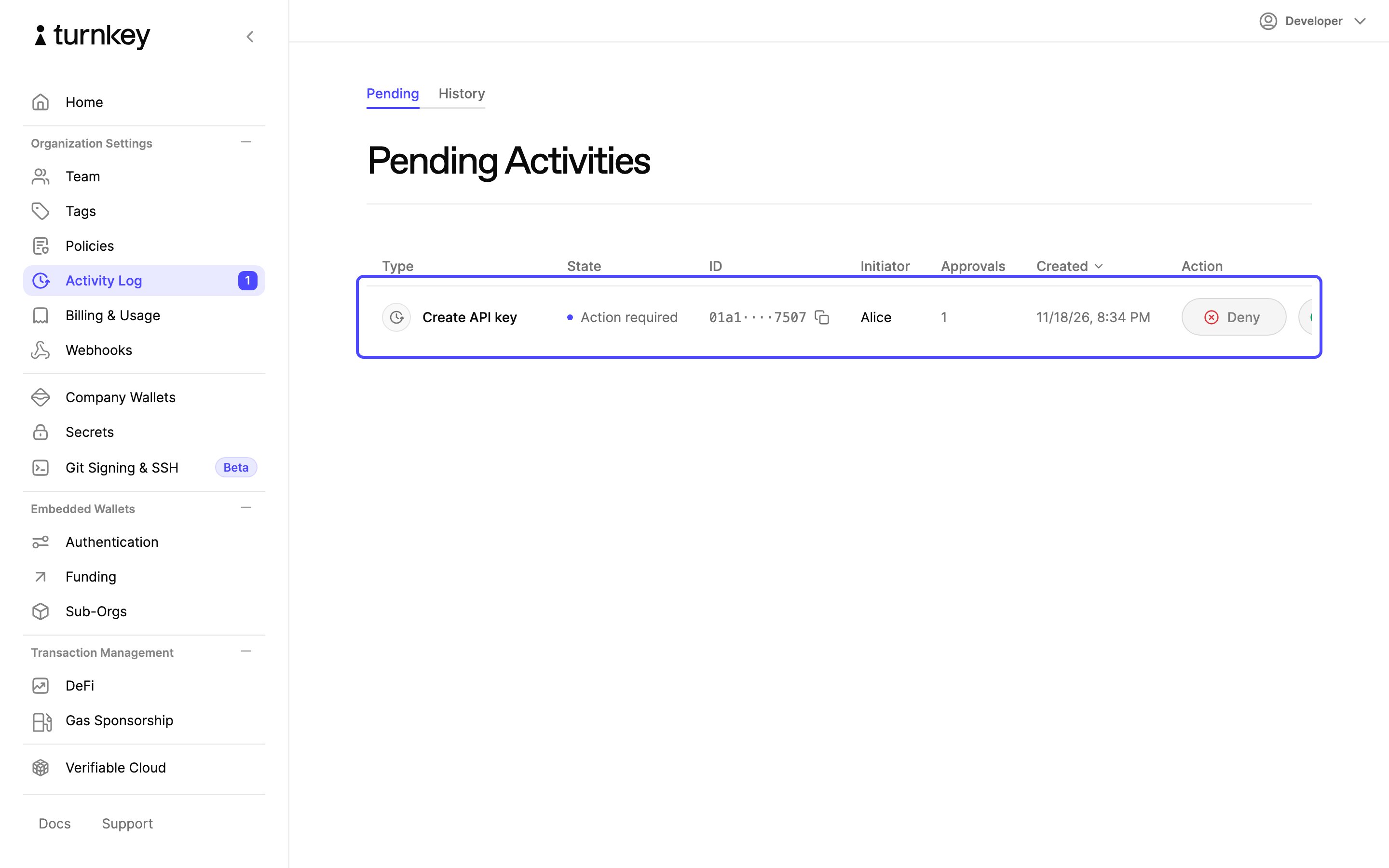
2
Vote from the list
Scroll the row to the right to reach the Action column. You can select Approve or Deny here without opening the activity. To review the request first, select the row to open the activity page, as the next steps do.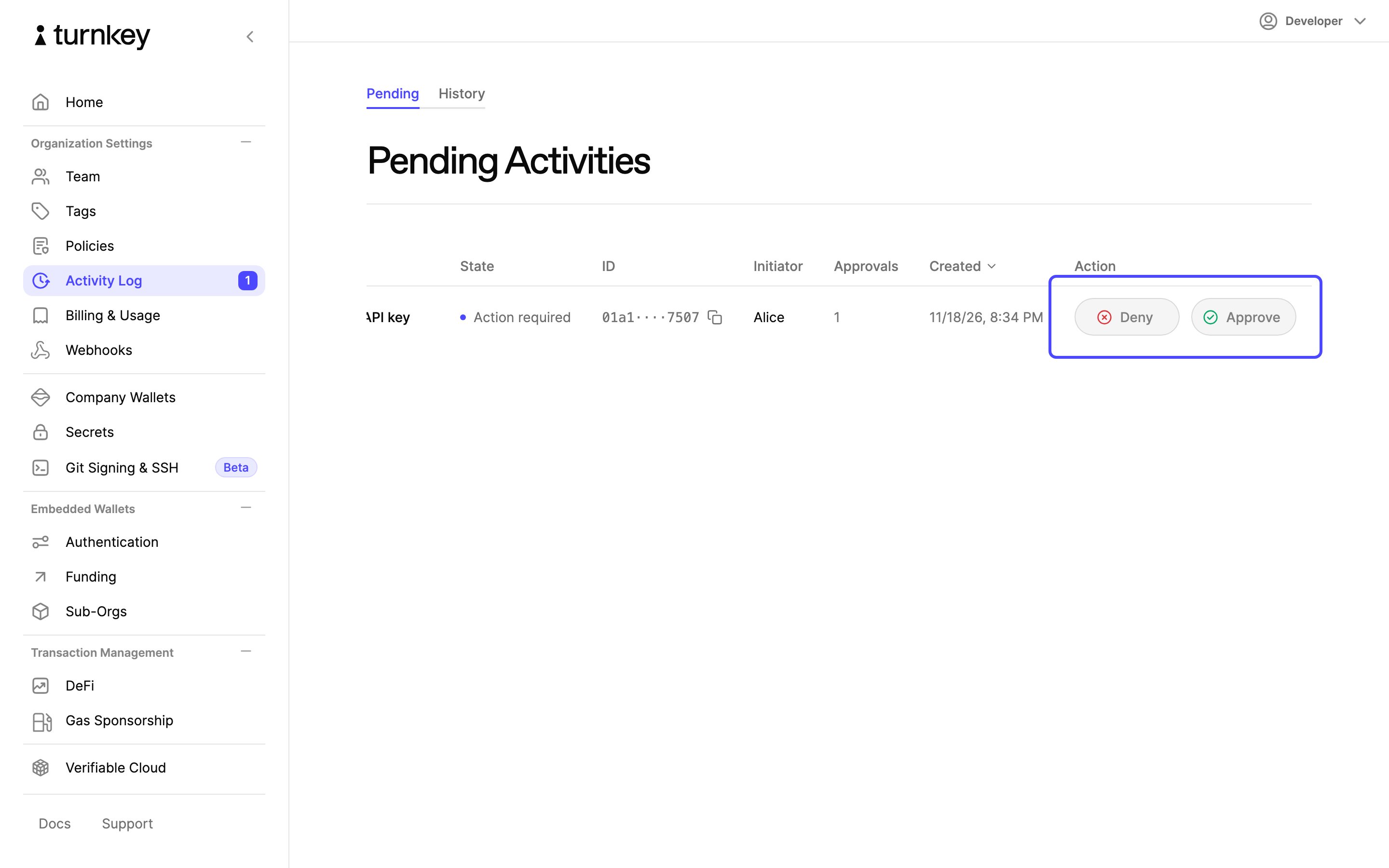
3
Review and approve
The activity page shows what was requested, who started it, and who has voted so far. Review the details, then select Approve.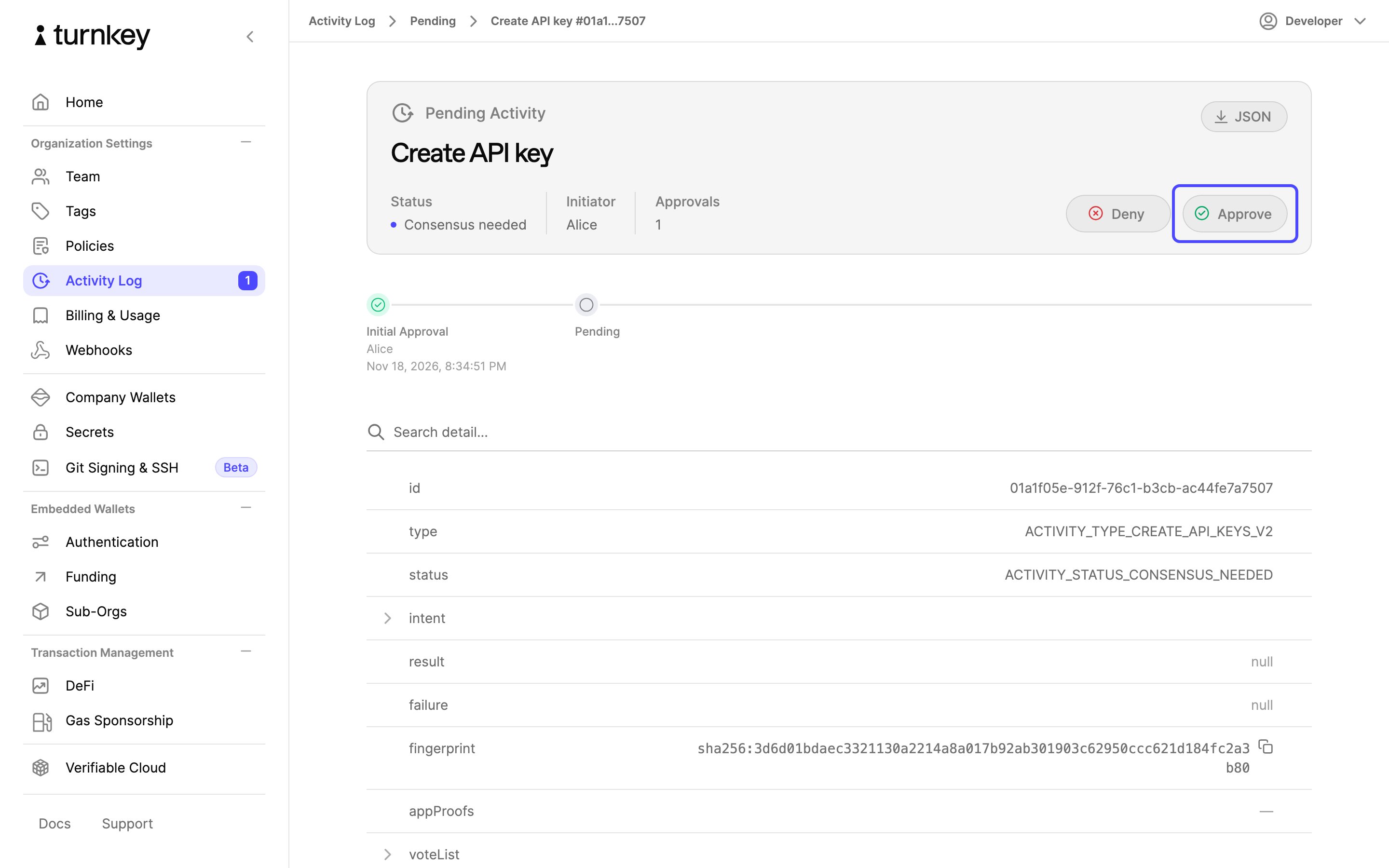
4
Confirm with your authenticator
Choose This Device, as shown in the screenshot, or another authenticator option from the dialog, such as a security key.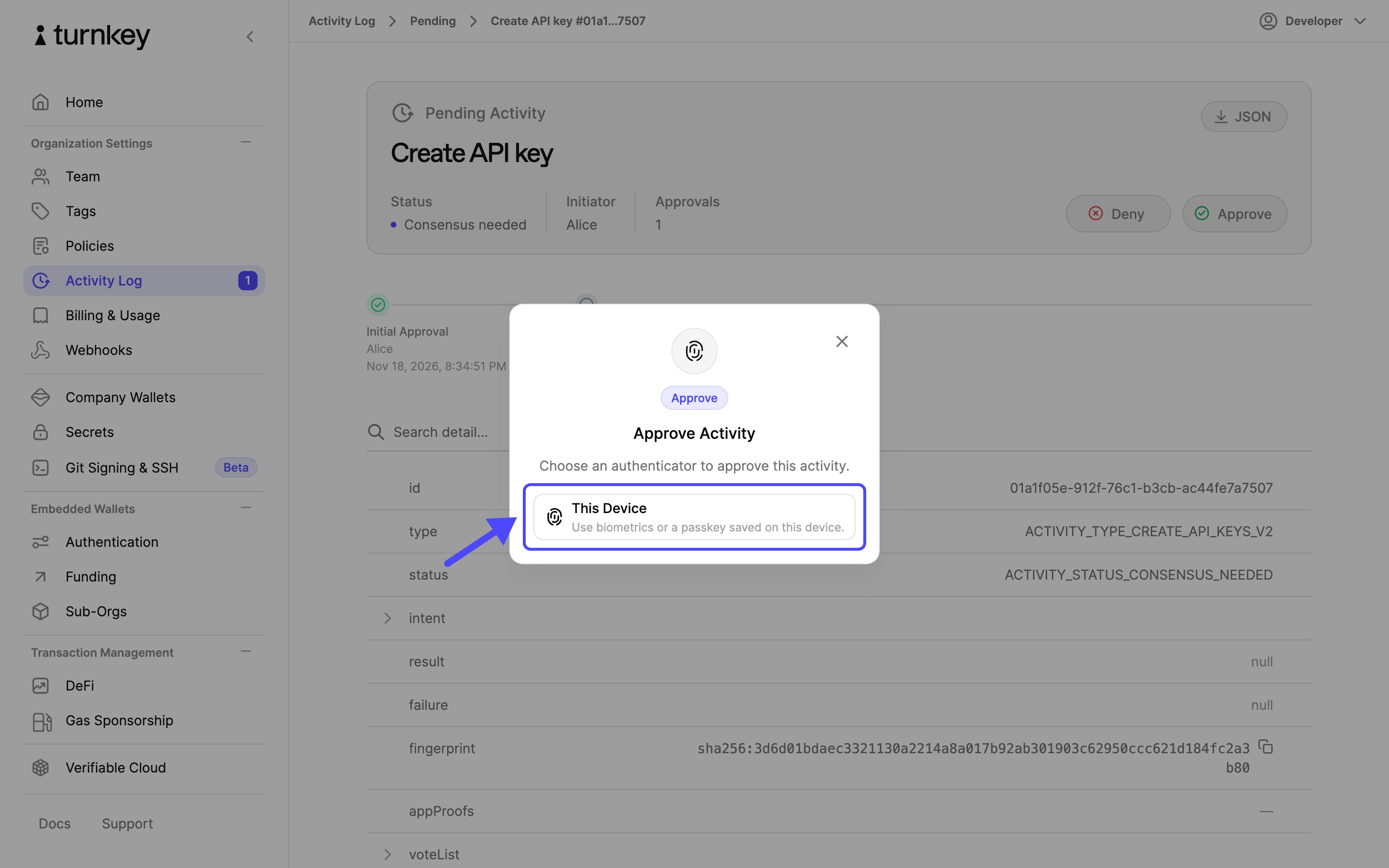
5
Activity approved
Your vote is recorded on the activity. If it meets the threshold, the activity runs right away and moves to the History tab. Otherwise it stays on the Pending tab, marked Awaiting consensus, until enough other users approve it.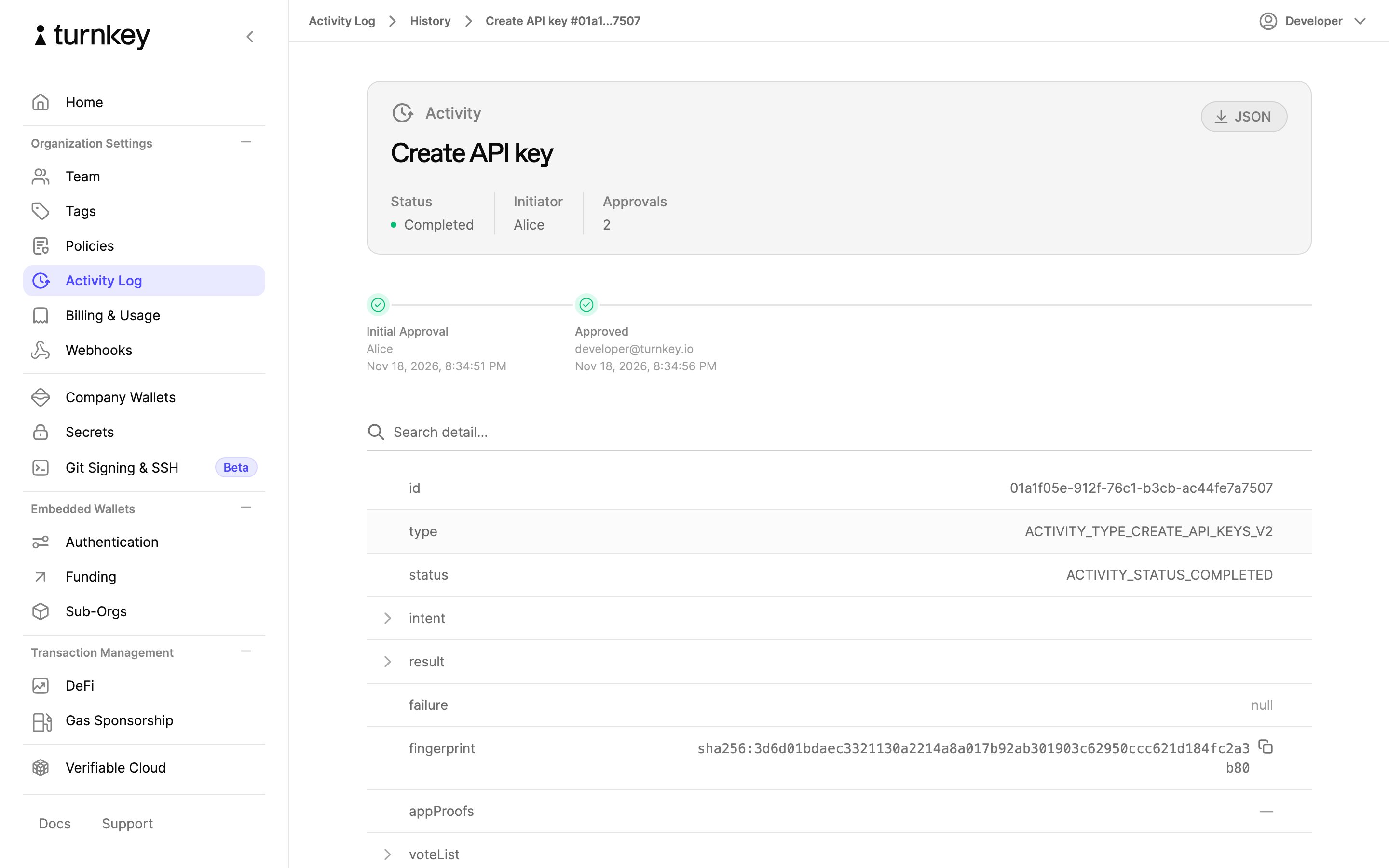
6
Deny an activity
To stop an activity instead, open it from the Pending tab in the same way and select Deny.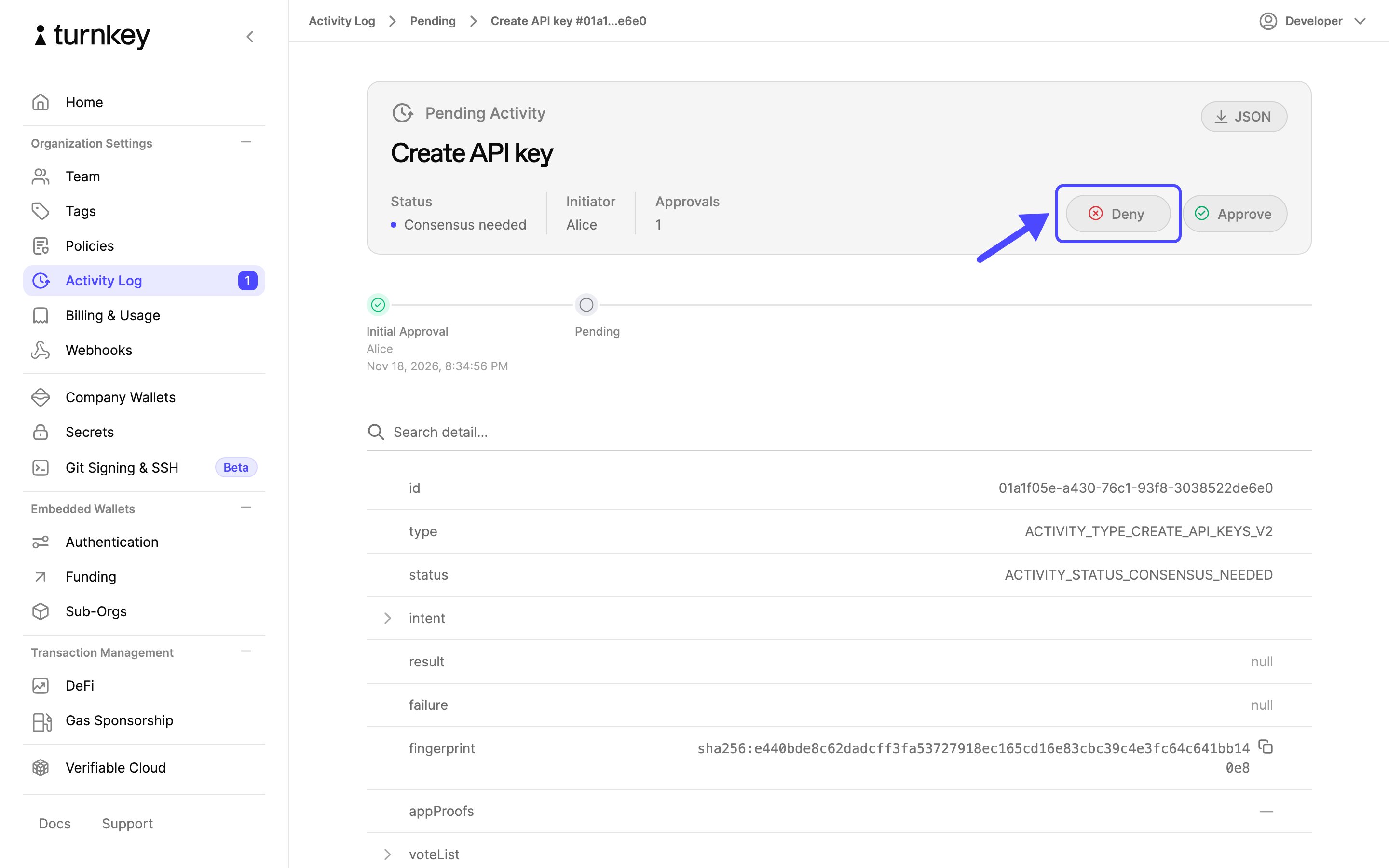
7
Confirm with your authenticator
Confirm the denial with your authenticator, as before.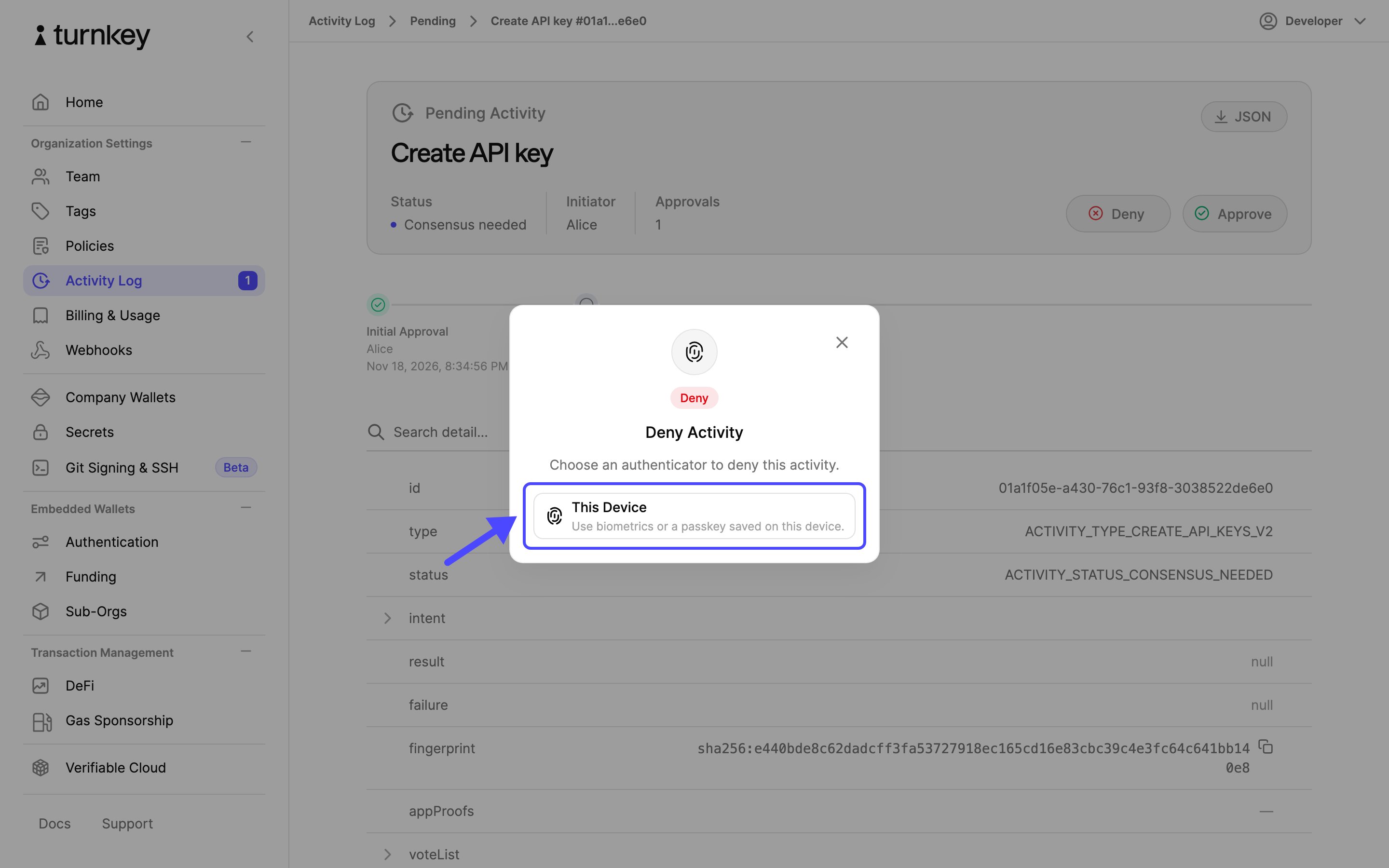
8
Denial recorded
Your denial is recorded on the activity, and the dialog lists every vote so far. A single denial does not cancel the activity: it can still run if enough other users approve it. Select Done.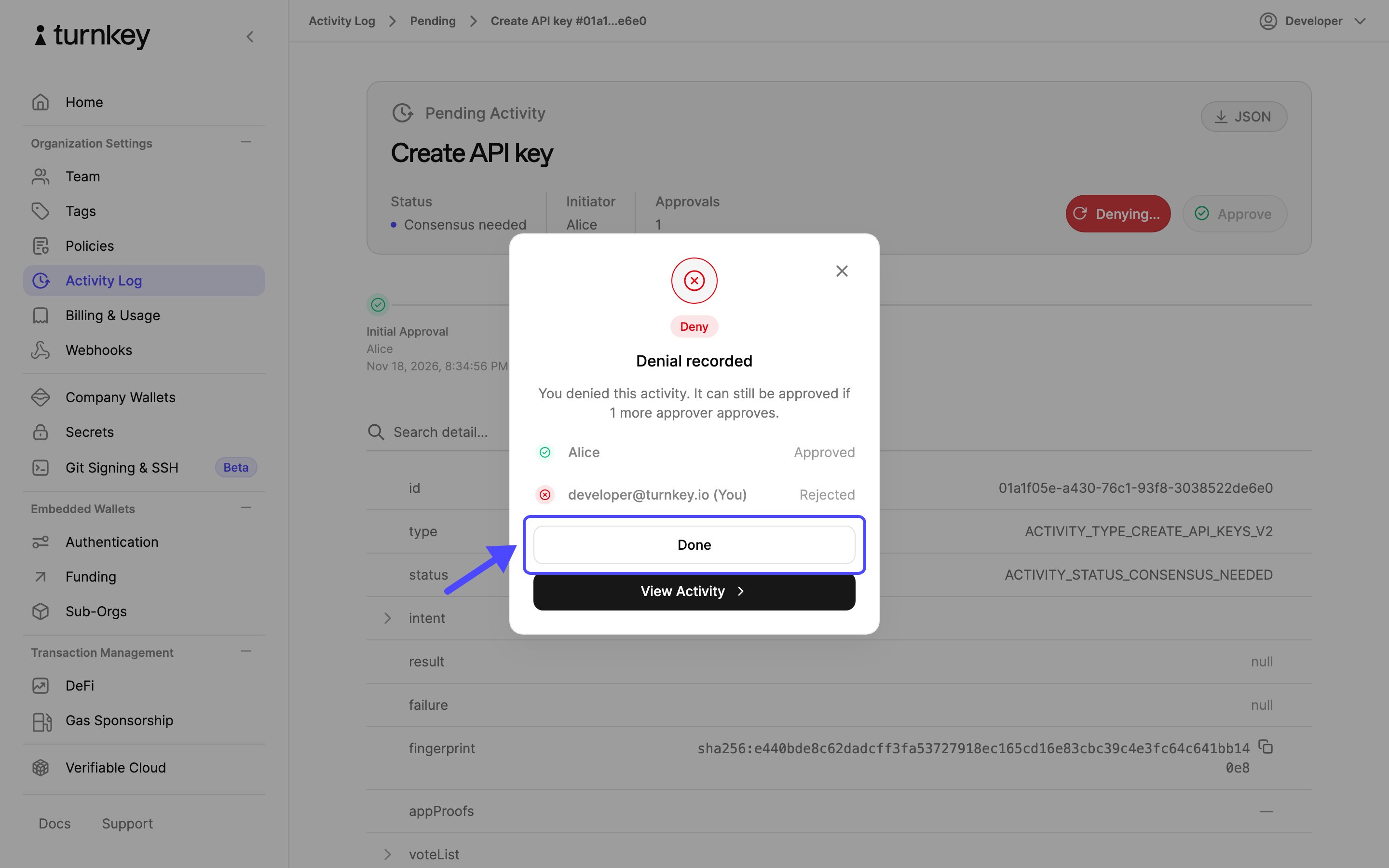
9
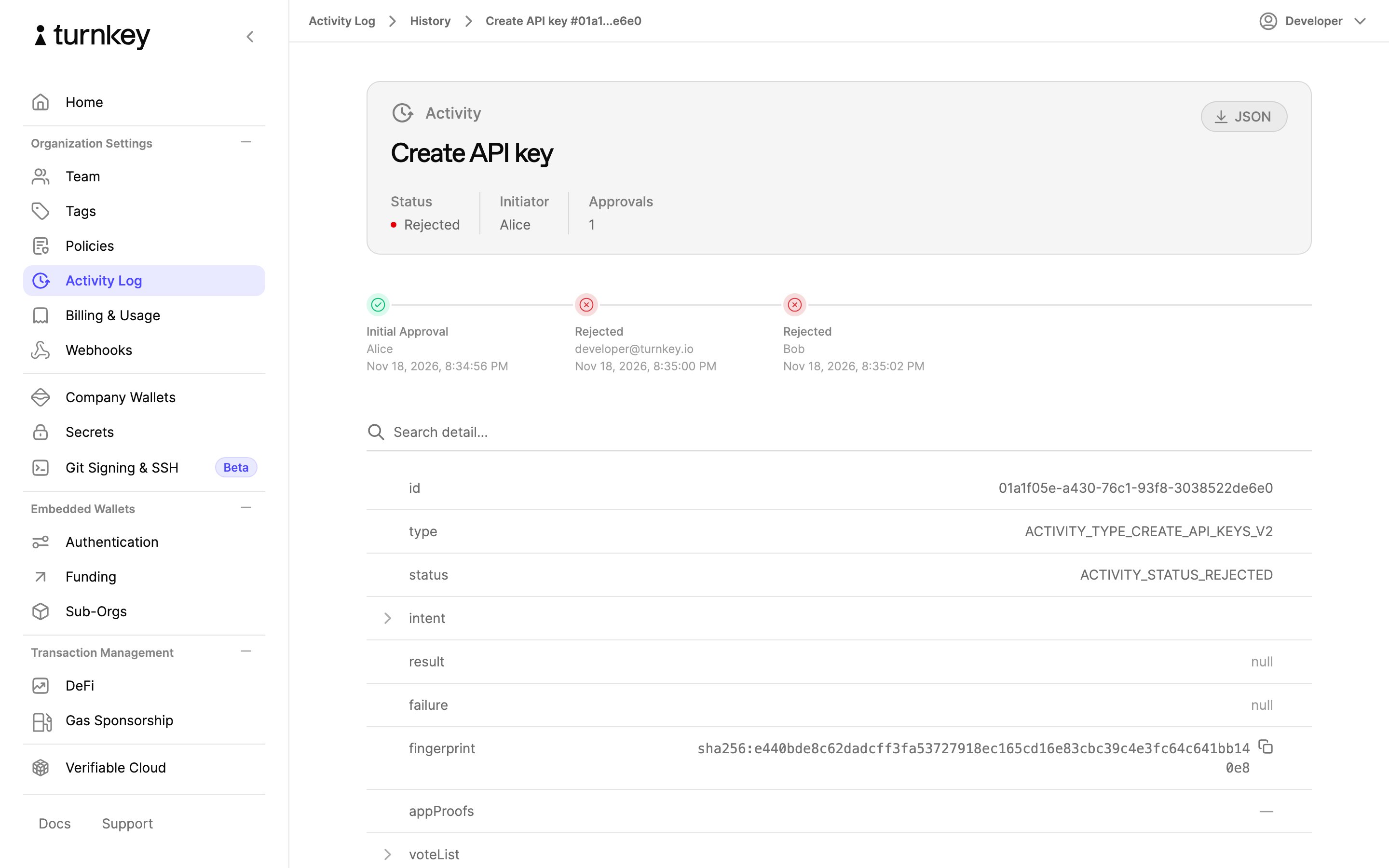
Activity rejected
Once as many root users as the quorum threshold have denied the activity, it is rejected and does not run. It stays visible on the History tab with every vote.