> ## Documentation Index
> Fetch the complete documentation index at: https://docs.turnkey.com/llms.txt
> Use this file to discover all available pages before exploring further.
# Support
> How to reach the Turnkey team, what each support channel is for, and what to include so we can help you faster.
Turnkey offers several ways to get help, depending on whether you need hands-on
integration support, have a commercial question, or are tracking an active
incident. The fastest route for technical questions is the support chat built
into the Turnkey dashboard.
In-dashboard chat for technical and integration questions. AI answers first,
with escalation to the Turnkey team.
[help@turnkey.com](mailto:help@turnkey.com) for support,
[hello@turnkey.com](mailto:hello@turnkey.com) for plans and commercial
questions.
Available to teams on an Enterprise plan, connected directly to your Turnkey
account team.
Critical incidents are reported at
[turnkey-status.com](https://www.turnkey-status.com/).
## Support chat in the dashboard
The Turnkey dashboard includes a support chat widget. It is the primary channel
for technical and integration questions, and conversations you start there are
tracked so you can pick them back up later.
The support chat is available in the
[dashboard](https://app.turnkey.com/dashboard/v2) and requires you to be
logged in. It is not available in the legacy dashboard, so if you do not see
the widget, confirm you are on the current dashboard and signed in to your
organization.
### Finding the widget
The chat launcher sits in the bottom-right corner of the dashboard and stays
available as you navigate between pages.
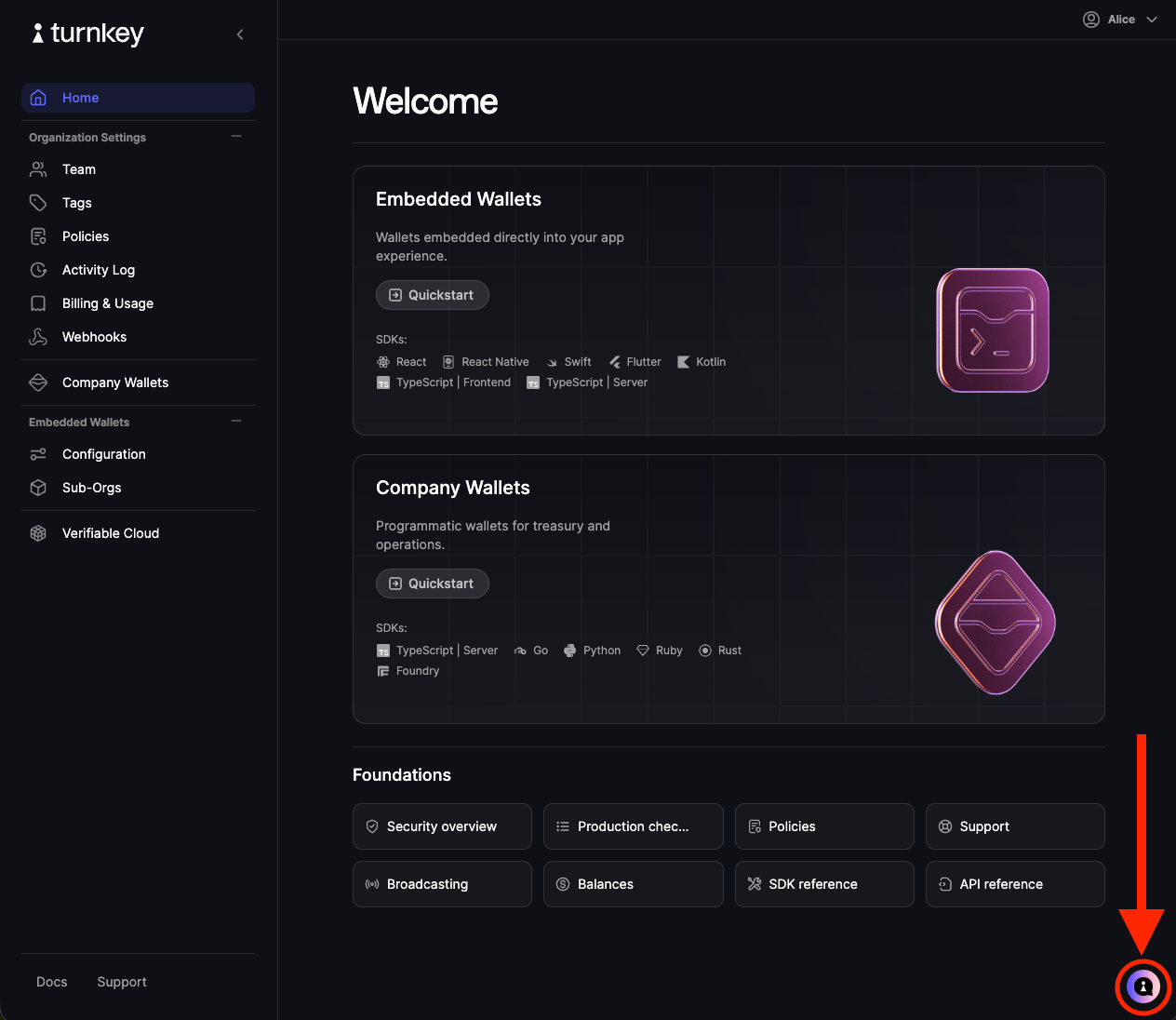 Selecting the launcher opens the chat panel over the dashboard, so you keep your
current page and context while you ask a question.
### Support links that open the chat
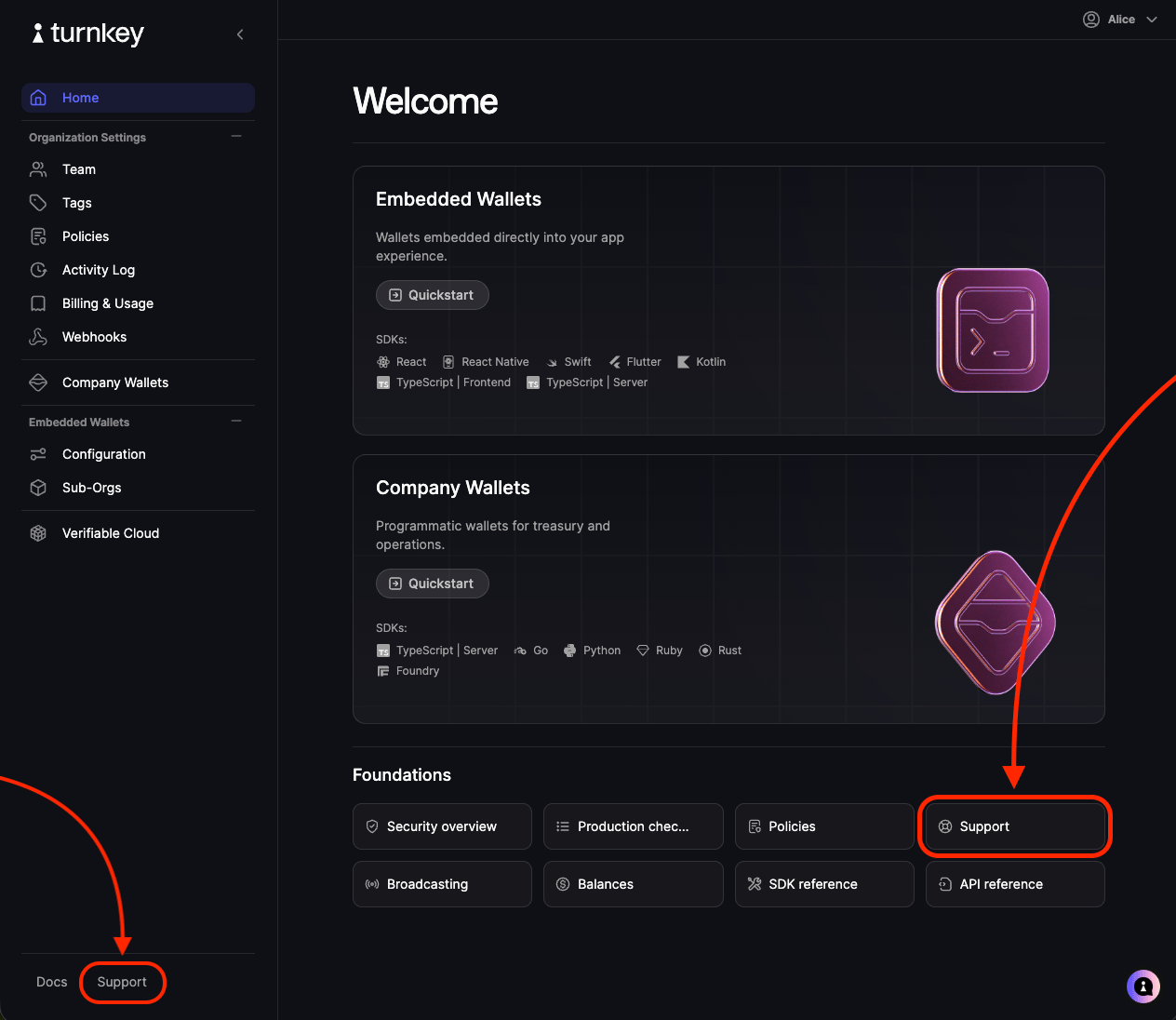
Two **Support** entry points in the dashboard open the same chat panel rather
than sending you elsewhere.
One is at the bottom of the dashboard side nav, available from any page. The
other is on the dashboard Home screen.
Selecting the launcher opens the chat panel over the dashboard, so you keep your
current page and context while you ask a question.
### Support links that open the chat
Two **Support** entry points in the dashboard open the same chat panel rather
than sending you elsewhere.
One is at the bottom of the dashboard side nav, available from any page. The
other is on the dashboard Home screen.
 ### What you can do in the chat
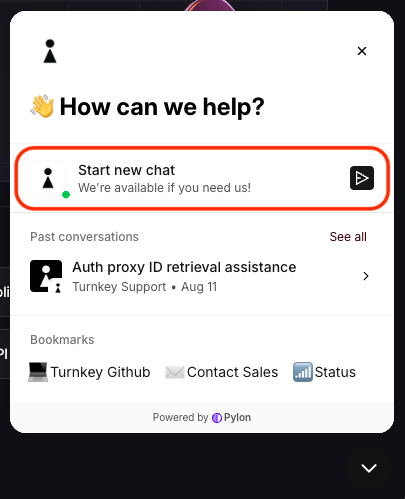
* **Start a new conversation.** Describe your issue in the message composer to
open a new thread.
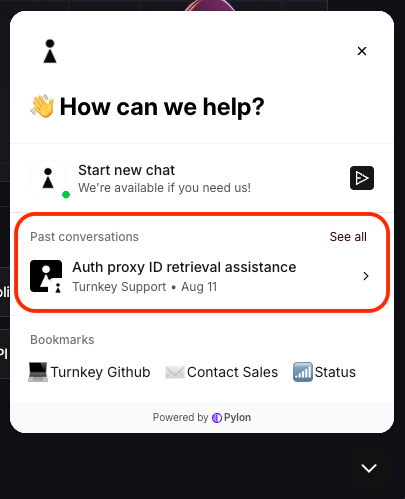
* **Reopen past conversations.** Previous threads are listed in the panel, so
you can review earlier answers or add a follow-up to an existing thread
instead of starting over.
* **Jump to related resources.** The panel contains helpful bookmarks at the bottom that link out to Turnkey's
[GitHub organization](https://github.com/tkhq), Turnkey's
[status page](https://www.turnkey-status.com/), and our
[Contact Sales](https://www.turnkey.com/contact-us) form for commercial questions.
### AI first response and escalation
Some new conversations will receive an AI-generated first response drawn from Turnkey's
documentation. It resolves many common questions immediately, at any hour.
If the answer does not resolve your issue, say so in the thread and the
conversation is escalated to the Turnkey support team. Some escalation is automatic. Escalated threads stay in
the same conversation, so the team sees the full history and you do not need to
restate the problem.
## Email
* [help@turnkey.com](mailto:help@turnkey.com) reaches the support team for
technical questions, integration help, errors, and account issues. Use this if
you cannot use the chat widget to report your issue.
* [hello@turnkey.com](mailto:hello@turnkey.com) is for pricing, plans, network
or feature requests, and other commercial questions. Teams looking for
in-depth, ongoing integration support can ask about upgrading to an Enterprise
plan here.
## Shared Slack channel
Teams on an Enterprise plan can have a shared Slack channel connected directly
to their Turnkey account team, which is useful during active integration work
and launches. If your organization already has one, keep using it. If you would
like one, contact [hello@turnkey.com](mailto:hello@turnkey.com).
## Community Slack
[Club Turnkey](https://join.slack.com/t/clubturnkey/shared_invite/zt-3aemp2g38-zIh4V~3vNpbX5PsSmkKxcQ)
is our community Slack workspace, where builders share feedback, trade notes on
their integrations, and stay up to date on the latest Turnkey features and
updates.
The support chat and [help@turnkey.com](mailto:help@turnkey.com) are the
primary channels for technical and integration questions, and requests there
are tracked as conversations you can pick back up. Start with the chat widget
in the Turnkey dashboard or send us an email for anything involving your
organization, an error you are hitting, or account details.
## Social
Turnkey posts product updates and announcements on
[X](https://x.com/turnkeyhq/). You can also reach out there for quick, general
questions, though the support chat and email are the right channels for anything
involving your organization or account details.
## Service status
Critical incidents and degraded service are reported at
[turnkey-status.com](https://www.turnkey-status.com/). Check it first if you are
seeing widespread failures or elevated latency, then reach out through the
support chat or [help@turnkey.com](mailto:help@turnkey.com) with the details
below.
## What to include in a support request
The more of this you can share up front, the faster we can diagnose the issue:
* Your **organization ID**, and the sub-organization ID if the issue involves
one
* The **activity ID** or **activity type** involved
* The **exact error message**, including the error ID when one is present
* The **SDK and version** or the raw request you sent, with API keys, private
keys, and other secrets removed
* **Timestamps** with a timezone, and how often the issue reproduces
* What you expected to happen versus what happened
Never share API private keys, wallet private keys, recovery bundles, seed
phrases, or session credentials in a support request. Turnkey will never ask
for them.
## Before you reach out
Many questions are answered in the docs:
* [FAQ](/reference/faq) covers common questions about testing, billing,
supported chains, and data policies.
* [API error reference](/api-reference/overview/errors) explains specific error
messages and how to resolve them.
* [SDK reference](/sdks/introduction) and the
[example apps](https://github.com/tkhq/sdk/tree/main/examples) in the Turnkey
SDK repository include working integrations you can compare against.
### What you can do in the chat
* **Start a new conversation.** Describe your issue in the message composer to
open a new thread.
* **Reopen past conversations.** Previous threads are listed in the panel, so
you can review earlier answers or add a follow-up to an existing thread
instead of starting over.
* **Jump to related resources.** The panel contains helpful bookmarks at the bottom that link out to Turnkey's
[GitHub organization](https://github.com/tkhq), Turnkey's
[status page](https://www.turnkey-status.com/), and our
[Contact Sales](https://www.turnkey.com/contact-us) form for commercial questions.
### AI first response and escalation
Some new conversations will receive an AI-generated first response drawn from Turnkey's
documentation. It resolves many common questions immediately, at any hour.
If the answer does not resolve your issue, say so in the thread and the
conversation is escalated to the Turnkey support team. Some escalation is automatic. Escalated threads stay in
the same conversation, so the team sees the full history and you do not need to
restate the problem.
## Email
* [help@turnkey.com](mailto:help@turnkey.com) reaches the support team for
technical questions, integration help, errors, and account issues. Use this if
you cannot use the chat widget to report your issue.
* [hello@turnkey.com](mailto:hello@turnkey.com) is for pricing, plans, network
or feature requests, and other commercial questions. Teams looking for
in-depth, ongoing integration support can ask about upgrading to an Enterprise
plan here.
## Shared Slack channel
Teams on an Enterprise plan can have a shared Slack channel connected directly
to their Turnkey account team, which is useful during active integration work
and launches. If your organization already has one, keep using it. If you would
like one, contact [hello@turnkey.com](mailto:hello@turnkey.com).
## Community Slack
[Club Turnkey](https://join.slack.com/t/clubturnkey/shared_invite/zt-3aemp2g38-zIh4V~3vNpbX5PsSmkKxcQ)
is our community Slack workspace, where builders share feedback, trade notes on
their integrations, and stay up to date on the latest Turnkey features and
updates.
The support chat and [help@turnkey.com](mailto:help@turnkey.com) are the
primary channels for technical and integration questions, and requests there
are tracked as conversations you can pick back up. Start with the chat widget
in the Turnkey dashboard or send us an email for anything involving your
organization, an error you are hitting, or account details.
## Social
Turnkey posts product updates and announcements on
[X](https://x.com/turnkeyhq/). You can also reach out there for quick, general
questions, though the support chat and email are the right channels for anything
involving your organization or account details.
## Service status
Critical incidents and degraded service are reported at
[turnkey-status.com](https://www.turnkey-status.com/). Check it first if you are
seeing widespread failures or elevated latency, then reach out through the
support chat or [help@turnkey.com](mailto:help@turnkey.com) with the details
below.
## What to include in a support request
The more of this you can share up front, the faster we can diagnose the issue:
* Your **organization ID**, and the sub-organization ID if the issue involves
one
* The **activity ID** or **activity type** involved
* The **exact error message**, including the error ID when one is present
* The **SDK and version** or the raw request you sent, with API keys, private
keys, and other secrets removed
* **Timestamps** with a timezone, and how often the issue reproduces
* What you expected to happen versus what happened
Never share API private keys, wallet private keys, recovery bundles, seed
phrases, or session credentials in a support request. Turnkey will never ask
for them.
## Before you reach out
Many questions are answered in the docs:
* [FAQ](/reference/faq) covers common questions about testing, billing,
supported chains, and data policies.
* [API error reference](/api-reference/overview/errors) explains specific error
messages and how to resolve them.
* [SDK reference](/sdks/introduction) and the
[example apps](https://github.com/tkhq/sdk/tree/main/examples) in the Turnkey
SDK repository include working integrations you can compare against.