> ## Documentation Index
> Fetch the complete documentation index at: https://docs.turnkey.com/llms.txt
> Use this file to discover all available pages before exploring further.
# Social logins
> Configure and implement social logins in your Flutter app using `turnkey_sdk_flutter`.
## Configuring OAuth
Using OAuth requires some configuration in the Turnkey Dashboard and your app.
### Enabling OAuth
Navigate to the **Embedded Wallets → Configuration** section in the [Turnkey Dashboard](https://app.turnkey.com/dashboard/walletKit) and enable the
**OAuth**. Note if you have not enabled the Auth Proxy, you will need to do so first. Check out the [Getting Started](/solutions/embedded-wallets/integration-guide/react-native/getting-started) guide for more details.
 #### Client IDs
You can choose to enter your primary client IDs for each OAuth provider in the dashboard
#### Client IDs
You can choose to enter your primary client IDs for each OAuth provider in the dashboard
 Or provide client IDs through your app configuration and pass them into the `TurnkeyProvider`'s config.
Client IDs typically come from the OAuth provider's developer console. For example, Google client IDs can be found in the [Google developer console](https://console.developers.google.com/).
For OAuth2.0 providers, you will need to upload the client ID and secret in
the dashboard. Check out the [OAuth2.0 providers](/solutions/embedded-wallets/integration-guide/react-native/authentication/social-logins#oauth2-0-providers) section for more details.
#### Client configuration
If you prefer configuring via code, provide your client IDs through `TurnkeyConfig.authConfig.oAuthConfig`, and set an `appScheme` to complete deep links.
Each provider takes a `primaryClientId` and an optional `secondaryClientIds` array. Any `secondaryClientIds` you pass are registered as additional OIDC audiences on the sub-organization at creation time, which lets a single Turnkey user be authenticated by multiple client IDs (typically used by apps that have both web and mobile versions sharing one identity). You can learn more about Multi-platform OAuth Identities [here](/features/authentication/social-logins#multi-platform-oauth-identities).
Apple Sign-In on iOS uses the **native** Apple Sign-In flow, which authenticates against the iOS app's bundle identifier. On Android, Apple Sign-In uses a **web-based** OAuth flow that authenticates against the Apple **Services ID**. To keep iOS and Android signups for the same user compatible, when you set `iosBundleId`, it is automatically added as a secondary client ID on the sub-org during Android signups (and vice-versa), so a user who signs up on one platform can still sign in on the other.
```dart title=lib/main.dart (excerpt) theme={"system"}
final turnkeyProvider = TurnkeyProvider(
config: TurnkeyConfig(
// ... your existing config ...
appScheme: 'myapp', // Required for OAuth deep link completion
authConfig: AuthConfig(
oAuthConfig: OAuthConfig(
oauthRedirectUri: '', // Optional if you want to force the redirect URI instead of the default `https://oauth-redirect.turnkey.com/?scheme=YOURAPPSCHEME/`
// Client IDs from your provider dashboards
providers: OAuthProviders(
google: GoogleOAuthProviderParams(
primaryClientId: GoogleOAuthPrimaryClientId(
webClientId: '',
),
// secondaryClientIds: [''],
),
apple: AppleOAuthProviderParams(
primaryClientId: AppleOAuthPrimaryClientId(
// Services ID - used on Android for the web-based OAuth flow.
serviceId: '',
// iOS bundle ID - used as the audience for the native iOS Sign-In flow.
iosBundleId: '',
),
),
x: XOAuthProviderParams(
primaryClientId: '',
),
discord: DiscordOAuthProviderParams(
primaryClientId: '',
),
),
),
),
),
);
```
By default, Turnkey hosts the OAuth redirect and origin pages at
`https://oauth-redirect.turnkey.com` and `https://oauth-origin.turnkey.com`,
which forward back into your app via the `appScheme` you configured. If
you'd rather host these yourself, override `oauthRedirectUri` in your `TurnkeyProvider`'s config. Whatever URL you set
must match the one registered in the provider's developer dashboard.
### App scheme configuration (deep links)
Register your app scheme on each platform to complete the OAuth flow.
#### iOS (Info.plist)
```xml title=ios/Runner/Info.plist (excerpt) theme={"system"}
CFBundleURLTypes
CFBundleURLName
myapp
CFBundleURLSchemes
myapp
```
#### Android (AndroidManifest.xml)
```xml title=android/app/src/main/AndroidManifest.xml (excerpt) theme={"system"}
```
Replace `myapp` with your actual scheme and ensure it matches `appScheme` in `TurnkeyConfig`.
## Usage
Call the helper for each provider from your `TurnkeyProvider` instance: `handleGoogleOauth`, `handleAppleOauth`, `handleFacebookOauth`, `handleDiscordOauth`, and `handleXOauth`.
```dart title=lib/screens/social_logins.dart theme={"system"}
import 'package:flutter/material.dart';
import 'package:provider/provider.dart';
import 'package:turnkey_sdk_flutter/turnkey_sdk_flutter.dart';
class SocialLoginButtons extends StatelessWidget {
const SocialLoginButtons({super.key});
@override
Widget build(BuildContext context) {
final tk = Provider.of(context, listen: false);
Future run(Future Function() fn) async {
try {
await fn();
// onSessionSelected in TurnkeyConfig can handle navigation on success
} catch (e) {
ScaffoldMessenger.of(context).showSnackBar(
SnackBar(content: Text('Error: $e')),
);
}
}
return Column(
crossAxisAlignment: CrossAxisAlignment.stretch,
children: [
ElevatedButton(
onPressed: () => run(tk.handleGoogleOauth),
child: const Text('Continue with Google'),
),
ElevatedButton(
onPressed: () => run(tk.handleAppleOauth),
child: const Text('Continue with Apple'),
),
ElevatedButton(
onPressed: () => run(tk.handleFacebookOauth),
child: const Text('Continue with Facebook'),
),
ElevatedButton(
onPressed: () => run(tk.handleDiscordOauth),
child: const Text('Continue with Discord'),
),
ElevatedButton(
onPressed: () => run(tk.handleXOauth),
child: const Text('Continue with X'),
),
],
);
}
}
```
## Provider details
### OAuth providers
#### Google
Requirements:
* Client ID: Web client ID from the Google developer console, set in the Dashboard or via `OAuthConfig`.
* In the **Google developer console**, set the authorized redirect URL to `https://oauth-redirect.turnkey.com/?scheme=YOURAPPSCHEME/` and the authorized JavaScript origin to `https://oauth-origin.turnkey.com/`. Replace `YOURAPPSCHEME` with the `appScheme` you set in `TurnkeyConfig`.
Usage:
```dart theme={"system"}
await context.read().handleGoogleOauth();
```
#### Apple
`handleAppleOauth` uses the **native** Sign in with Apple flow on iOS devices. For this to work you must:
* Enable the **Sign in with Apple** capability for your iOS app in **Xcode** (Signing & Capabilities).
* Enable **Sign in with Apple** for the app identifier in the **Apple Developer** dashboard.
On Android, `handleAppleOauth` falls back to a **web-based** Apple OAuth flow that authenticates against the Apple **Services ID**. To keep iOS and Android sign-ins linked to the same Turnkey user, configure both `serviceId` and `iosBundleId` on `AppleOAuthPrimaryClientId`. The `iosBundleId` is automatically registered as a secondary client ID on the sub-org during Android signups (and vice-versa).
Requirements:
* Client IDs: Apple **Services ID** (Android web flow) and iOS **bundle ID** (native iOS flow), set via the `OAuthConfig`.
* In the **Apple Developer** dashboard, set the Services ID's return URL to `https://oauth-redirect.turnkey.com/?scheme=YOURAPPSCHEME/` and its domain/origin to `https://oauth-origin.turnkey.com/`. Replace `YOURAPPSCHEME` with the `appScheme` you set in `TurnkeyConfig`. This is only required for the Android web-based flow; the native iOS flow doesn't need it.
Usage:
```dart theme={"system"}
await context.read().handleAppleOauth();
```
`handleAppleWebOauth` is also exposed but **deprecated**. It's kept for
backwards compatibility with older SDK versions and forces the web-based
Apple OAuth flow on all platforms (including iOS), using `serviceId` as the
audience. Only use it if you specifically need to force the web flow on iOS.
#### Facebook
Requirements:
* Client ID: set in the Dashboard or via `OAuthConfig`.
* In the **Facebook for Developers** dashboard, set the valid OAuth redirect URI to `https://oauth-redirect.turnkey.com/?scheme=YOURAPPSCHEME/` and the app domain to `https://oauth-origin.turnkey.com/`. Replace `YOURAPPSCHEME` with the `appScheme` you set in `TurnkeyConfig`.
Usage:
```dart theme={"system"}
await context.read().handleFacebookOauth();
```
### OAuth2.0 providers
For OAuth providers that exclusively use OAuth2.0 (e.g., X, Discord), you will need to configure a few additional settings in your Turnkey Dashboard.
In the **Embedded Wallets → Configuration** section of the dashboard, head to the **OAuth 2.0** tab and click **Add Credential**.
Or provide client IDs through your app configuration and pass them into the `TurnkeyProvider`'s config.
Client IDs typically come from the OAuth provider's developer console. For example, Google client IDs can be found in the [Google developer console](https://console.developers.google.com/).
For OAuth2.0 providers, you will need to upload the client ID and secret in
the dashboard. Check out the [OAuth2.0 providers](/solutions/embedded-wallets/integration-guide/react-native/authentication/social-logins#oauth2-0-providers) section for more details.
#### Client configuration
If you prefer configuring via code, provide your client IDs through `TurnkeyConfig.authConfig.oAuthConfig`, and set an `appScheme` to complete deep links.
Each provider takes a `primaryClientId` and an optional `secondaryClientIds` array. Any `secondaryClientIds` you pass are registered as additional OIDC audiences on the sub-organization at creation time, which lets a single Turnkey user be authenticated by multiple client IDs (typically used by apps that have both web and mobile versions sharing one identity). You can learn more about Multi-platform OAuth Identities [here](/features/authentication/social-logins#multi-platform-oauth-identities).
Apple Sign-In on iOS uses the **native** Apple Sign-In flow, which authenticates against the iOS app's bundle identifier. On Android, Apple Sign-In uses a **web-based** OAuth flow that authenticates against the Apple **Services ID**. To keep iOS and Android signups for the same user compatible, when you set `iosBundleId`, it is automatically added as a secondary client ID on the sub-org during Android signups (and vice-versa), so a user who signs up on one platform can still sign in on the other.
```dart title=lib/main.dart (excerpt) theme={"system"}
final turnkeyProvider = TurnkeyProvider(
config: TurnkeyConfig(
// ... your existing config ...
appScheme: 'myapp', // Required for OAuth deep link completion
authConfig: AuthConfig(
oAuthConfig: OAuthConfig(
oauthRedirectUri: '', // Optional if you want to force the redirect URI instead of the default `https://oauth-redirect.turnkey.com/?scheme=YOURAPPSCHEME/`
// Client IDs from your provider dashboards
providers: OAuthProviders(
google: GoogleOAuthProviderParams(
primaryClientId: GoogleOAuthPrimaryClientId(
webClientId: '',
),
// secondaryClientIds: [''],
),
apple: AppleOAuthProviderParams(
primaryClientId: AppleOAuthPrimaryClientId(
// Services ID - used on Android for the web-based OAuth flow.
serviceId: '',
// iOS bundle ID - used as the audience for the native iOS Sign-In flow.
iosBundleId: '',
),
),
x: XOAuthProviderParams(
primaryClientId: '',
),
discord: DiscordOAuthProviderParams(
primaryClientId: '',
),
),
),
),
),
);
```
By default, Turnkey hosts the OAuth redirect and origin pages at
`https://oauth-redirect.turnkey.com` and `https://oauth-origin.turnkey.com`,
which forward back into your app via the `appScheme` you configured. If
you'd rather host these yourself, override `oauthRedirectUri` in your `TurnkeyProvider`'s config. Whatever URL you set
must match the one registered in the provider's developer dashboard.
### App scheme configuration (deep links)
Register your app scheme on each platform to complete the OAuth flow.
#### iOS (Info.plist)
```xml title=ios/Runner/Info.plist (excerpt) theme={"system"}
CFBundleURLTypes
CFBundleURLName
myapp
CFBundleURLSchemes
myapp
```
#### Android (AndroidManifest.xml)
```xml title=android/app/src/main/AndroidManifest.xml (excerpt) theme={"system"}
```
Replace `myapp` with your actual scheme and ensure it matches `appScheme` in `TurnkeyConfig`.
## Usage
Call the helper for each provider from your `TurnkeyProvider` instance: `handleGoogleOauth`, `handleAppleOauth`, `handleFacebookOauth`, `handleDiscordOauth`, and `handleXOauth`.
```dart title=lib/screens/social_logins.dart theme={"system"}
import 'package:flutter/material.dart';
import 'package:provider/provider.dart';
import 'package:turnkey_sdk_flutter/turnkey_sdk_flutter.dart';
class SocialLoginButtons extends StatelessWidget {
const SocialLoginButtons({super.key});
@override
Widget build(BuildContext context) {
final tk = Provider.of(context, listen: false);
Future run(Future Function() fn) async {
try {
await fn();
// onSessionSelected in TurnkeyConfig can handle navigation on success
} catch (e) {
ScaffoldMessenger.of(context).showSnackBar(
SnackBar(content: Text('Error: $e')),
);
}
}
return Column(
crossAxisAlignment: CrossAxisAlignment.stretch,
children: [
ElevatedButton(
onPressed: () => run(tk.handleGoogleOauth),
child: const Text('Continue with Google'),
),
ElevatedButton(
onPressed: () => run(tk.handleAppleOauth),
child: const Text('Continue with Apple'),
),
ElevatedButton(
onPressed: () => run(tk.handleFacebookOauth),
child: const Text('Continue with Facebook'),
),
ElevatedButton(
onPressed: () => run(tk.handleDiscordOauth),
child: const Text('Continue with Discord'),
),
ElevatedButton(
onPressed: () => run(tk.handleXOauth),
child: const Text('Continue with X'),
),
],
);
}
}
```
## Provider details
### OAuth providers
#### Google
Requirements:
* Client ID: Web client ID from the Google developer console, set in the Dashboard or via `OAuthConfig`.
* In the **Google developer console**, set the authorized redirect URL to `https://oauth-redirect.turnkey.com/?scheme=YOURAPPSCHEME/` and the authorized JavaScript origin to `https://oauth-origin.turnkey.com/`. Replace `YOURAPPSCHEME` with the `appScheme` you set in `TurnkeyConfig`.
Usage:
```dart theme={"system"}
await context.read().handleGoogleOauth();
```
#### Apple
`handleAppleOauth` uses the **native** Sign in with Apple flow on iOS devices. For this to work you must:
* Enable the **Sign in with Apple** capability for your iOS app in **Xcode** (Signing & Capabilities).
* Enable **Sign in with Apple** for the app identifier in the **Apple Developer** dashboard.
On Android, `handleAppleOauth` falls back to a **web-based** Apple OAuth flow that authenticates against the Apple **Services ID**. To keep iOS and Android sign-ins linked to the same Turnkey user, configure both `serviceId` and `iosBundleId` on `AppleOAuthPrimaryClientId`. The `iosBundleId` is automatically registered as a secondary client ID on the sub-org during Android signups (and vice-versa).
Requirements:
* Client IDs: Apple **Services ID** (Android web flow) and iOS **bundle ID** (native iOS flow), set via the `OAuthConfig`.
* In the **Apple Developer** dashboard, set the Services ID's return URL to `https://oauth-redirect.turnkey.com/?scheme=YOURAPPSCHEME/` and its domain/origin to `https://oauth-origin.turnkey.com/`. Replace `YOURAPPSCHEME` with the `appScheme` you set in `TurnkeyConfig`. This is only required for the Android web-based flow; the native iOS flow doesn't need it.
Usage:
```dart theme={"system"}
await context.read().handleAppleOauth();
```
`handleAppleWebOauth` is also exposed but **deprecated**. It's kept for
backwards compatibility with older SDK versions and forces the web-based
Apple OAuth flow on all platforms (including iOS), using `serviceId` as the
audience. Only use it if you specifically need to force the web flow on iOS.
#### Facebook
Requirements:
* Client ID: set in the Dashboard or via `OAuthConfig`.
* In the **Facebook for Developers** dashboard, set the valid OAuth redirect URI to `https://oauth-redirect.turnkey.com/?scheme=YOURAPPSCHEME/` and the app domain to `https://oauth-origin.turnkey.com/`. Replace `YOURAPPSCHEME` with the `appScheme` you set in `TurnkeyConfig`.
Usage:
```dart theme={"system"}
await context.read().handleFacebookOauth();
```
### OAuth2.0 providers
For OAuth providers that exclusively use OAuth2.0 (e.g., X, Discord), you will need to configure a few additional settings in your Turnkey Dashboard.
In the **Embedded Wallets → Configuration** section of the dashboard, head to the **OAuth 2.0** tab and click **Add Credential**.
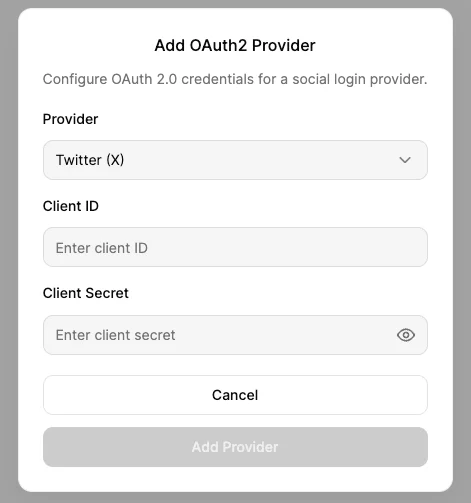
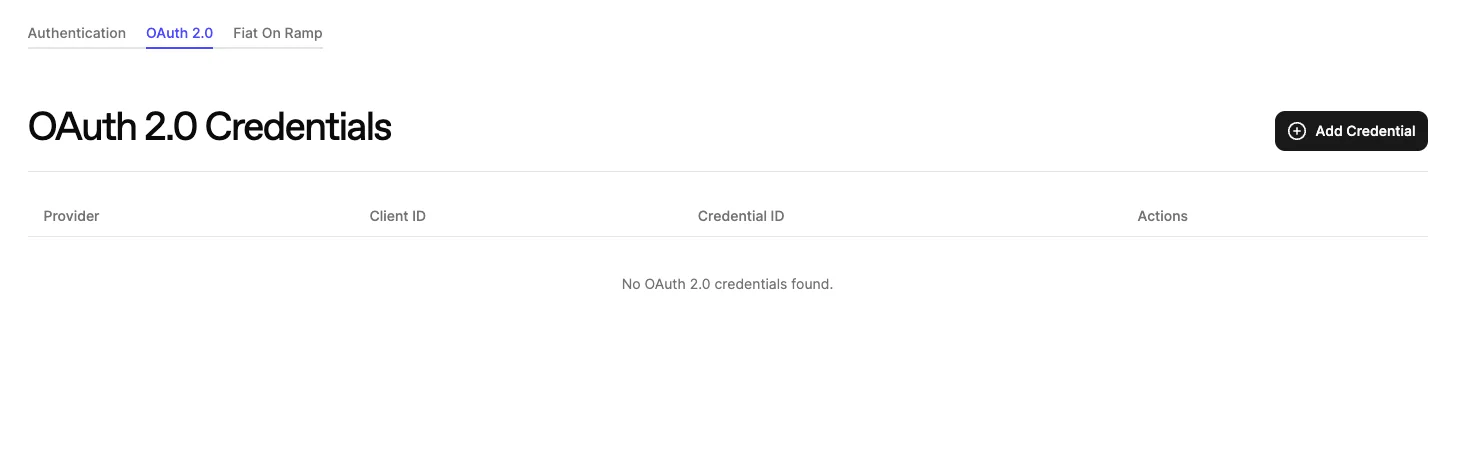 Select the provider you want to add from the dropdown, and fill in the required fields.
You can find these values in the provider's developer console.
Any secrets will automatically be encrypted before uploading to Turnkey.
Select the provider you want to add from the dropdown, and fill in the required fields.
You can find these values in the provider's developer console.
Any secrets will automatically be encrypted before uploading to Turnkey.
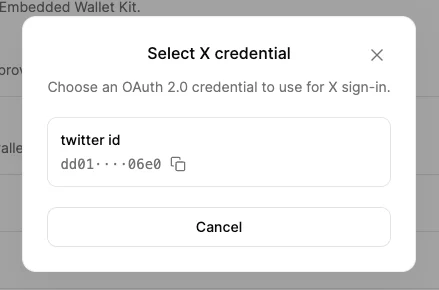
 Once you've added the provider, head back to the **Authentication** tab, and enable the provider you just added under the **SDK Configuration** section.
Click **Select** to choose your newly added client ID, then click **Save Settings**. You can also simply enter the client ID in the `OAuthConfig` as shown above.
Once you've added the provider, head back to the **Authentication** tab, and enable the provider you just added under the **SDK Configuration** section.
Click **Select** to choose your newly added client ID, then click **Save Settings**. You can also simply enter the client ID in the `OAuthConfig` as shown above.
 #### Discord
Requirements:
* Client ID: set in Dashboard or via `OAuthConfig`.
* In the **Discord Developer Portal**, set the redirect URI to `YOUR_APP_SCHEME://`.
Usage:
```dart theme={"system"}
await context.read().handleDiscordOauth();
```
#### X (Twitter)
Requirements:
* Client ID: set in Dashboard or via `OAuthConfig`.
* In the **Twitter Developer Portal**, set the redirect URI to `YOUR_APP_SCHEME://`.
Usage:
```dart theme={"system"}
await context.read().handleXOauth();
```
#### Discord
Requirements:
* Client ID: set in Dashboard or via `OAuthConfig`.
* In the **Discord Developer Portal**, set the redirect URI to `YOUR_APP_SCHEME://`.
Usage:
```dart theme={"system"}
await context.read().handleDiscordOauth();
```
#### X (Twitter)
Requirements:
* Client ID: set in Dashboard or via `OAuthConfig`.
* In the **Twitter Developer Portal**, set the redirect URI to `YOUR_APP_SCHEME://`.
Usage:
```dart theme={"system"}
await context.read().handleXOauth();
```