> ## Documentation Index
> Fetch the complete documentation index at: https://docs.turnkey.com/llms.txt
> Use this file to discover all available pages before exploring further.
# Debug mode
> View enclave logs while iterating on a non-production TVC app.
export const TvcBetaCallout = () =>
Turnkey Verifiable Cloud is currently in Private Beta.{" "}
Join the waitlist
{" "}
to request access. Once our team reaches out, share your organization ID to
get enabled. If you already have a dedicated Slack channel with us, reach out
there directly. Once enabled, you will see a new "Verifiable Cloud" section
appear in the top-level navigation.
;
Debug mode lets you see what your application is doing inside the enclave while you build and troubleshoot a TVC app. It turns on the enclave's log output so you can read your app's logs from the CLI and the dashboard.
Because debug mode makes the enclave inspectable, it turns off the very guarantees TVC exists to provide. It is a development-only tool and is incompatible with running verifiable workloads in production. Conceptually, enabling it turns the trusted enclave into an ordinary, unverifiable node, so that incompatibility is fundamental, not merely a matter of best practice. Debug mode exists to help you iterate in a non-production context before you deploy. The rest of this page explains what changes, how to enable it, and how to keep development and production cleanly separated.
**Never run production workloads in debug mode.** A debug-mode enclave is not verifiable, and its Quorum Key must be treated as public. Creating an app with debug mode enabled **permanently** marks that app's Quorum Key as insecure, for every deployment under it, and it cannot be undone. Use a **separate** app for production.
## What debug mode changes
When a deployment runs in debug mode:
* **No remote attestation.** The enclave boots in AWS Nitro debug mode, which produces attestation documents whose PCR values are all zeros. The enclave cannot prove what code it is running, so it is not verifiable, and the core property of a TEE is effectively disabled. See [Proofs and Verification](/features/verifiable-cloud/proofs-and-verification).
* **The Quorum Key is exposed.** Because the enclave is inspectable, any secret inside it, including the app's Quorum Key, must be considered viewable. This is why the Quorum Key is permanently compromised once debug mode is enabled on an app.
* **Logs are readable.** Your application's `stdout` and `stderr` from inside the enclave are captured so you can view them (this is the point of debug mode). Anything your app logs is visible to you, and while debugging it is not protected by the enclave, so avoid logging secrets.
* **One replica.** Debug deployments run a single replica instead of three.
## Recommended flow: a dev app and a production app
Keep two separate apps that run the same image:
1. A **dev app** with debug mode enabled. Deploy your image here, read the logs, and iterate until it works.
2. A **production app** with debug mode disabled and its own Quorum Key. Once your image works in the dev app, deploy the same image to your production app as a secure, verifiable deployment.
**Each app must use its own Quorum Key.** The dev app's Quorum Key is compromised by debug mode, so your production app must be a distinct app with a distinct Quorum Key. Never reuse a Quorum Key across a debug app and a production app. See [Manifest sets and share sets](/features/verifiable-cloud/manifest-sets-and-share-sets) for how Quorum Keys and operators fit together.
## Enabling debug mode
Debug mode is controlled by two opt-in flags, both prefixed `dangerous` to signal that they weaken security.
Set this in your app config (`app.json` from `tvc app init`), or pass `--dangerous-enable-debug-mode-deployments` when creating the app:
```json theme={"system"}
{
"name": "my-dev-app",
"dangerousEnableDebugModeDeployments": true
}
```
This flag can only be set when the app is created and **cannot be changed later**. It defaults to `false`. Setting it to `true` is what permanently marks the app's Quorum Key as insecure, which is why this belongs on a dedicated dev app, never your production app.
For deployments in the app you've just created, set this in your deploy config (`deploy.json`), or pass `--dangerous-deploy-debug-mode` when creating the deployment:
```json theme={"system"}
{
"dangerousDeployDebugMode": true
}
```
The app flag only permits debug deployments; this flag actually runs the deployment in debug mode so its logs are captured.
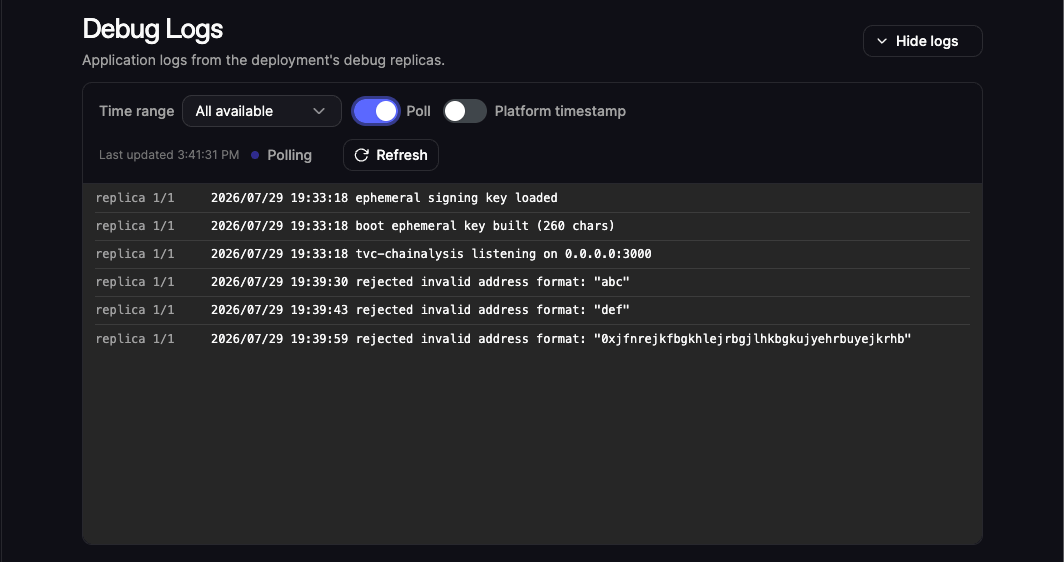
You can view your application's enclave logs from the CLI or on the deployment's page in the dashboard.
Fetch the logs from the CLI:
```bash theme={"system"}
tvc deploy debug-logs --deploy-id --poll
```
Run `tvc deploy debug-logs --help` to see the other available options.
```text theme={"system"}
replica 1/1 2026/07/29 19:33:18 ephemeral signing key loaded
replica 1/1 2026/07/29 19:33:18 boot ephemeral key built (260 chars)
replica 1/1 2026/07/29 19:33:18 YOUR-APP-NAME listening on 0.0.0.0:3000
Connected; polling for debug logs...
replica 1/1 2026/07/29 19:39:30 rejected invalid address format: "abc"
replica 1/1 2026/07/29 19:39:43 rejected invalid address format: "def"
replica 1/1 2026/07/29 19:39:59 rejected invalid address format: "0xjfnrejkfbgkhlejrbgjlhkbgkujyehrbuyejkrhb"
```
Or view them on this deployment's page in the [TVC dashboard](https://app.turnkey.com/dashboard/v2/tvc). Just select your app from the app page and then select the live deployment from the following deployments page. Now you will be on the live deployment's page where you will find the Debug Logs table near the top:
 ## Returning to a secure posture
Debug mode cannot be turned off on an app once enabled, and a tainted Quorum Key cannot be made secure again. To run securely, deploy your finished image to a separate production app that was created with debug mode off and its own Quorum Key.
## Returning to a secure posture
Debug mode cannot be turned off on an app once enabled, and a tainted Quorum Key cannot be made secure again. To run securely, deploy your finished image to a separate production app that was created with debug mode off and its own Quorum Key.